
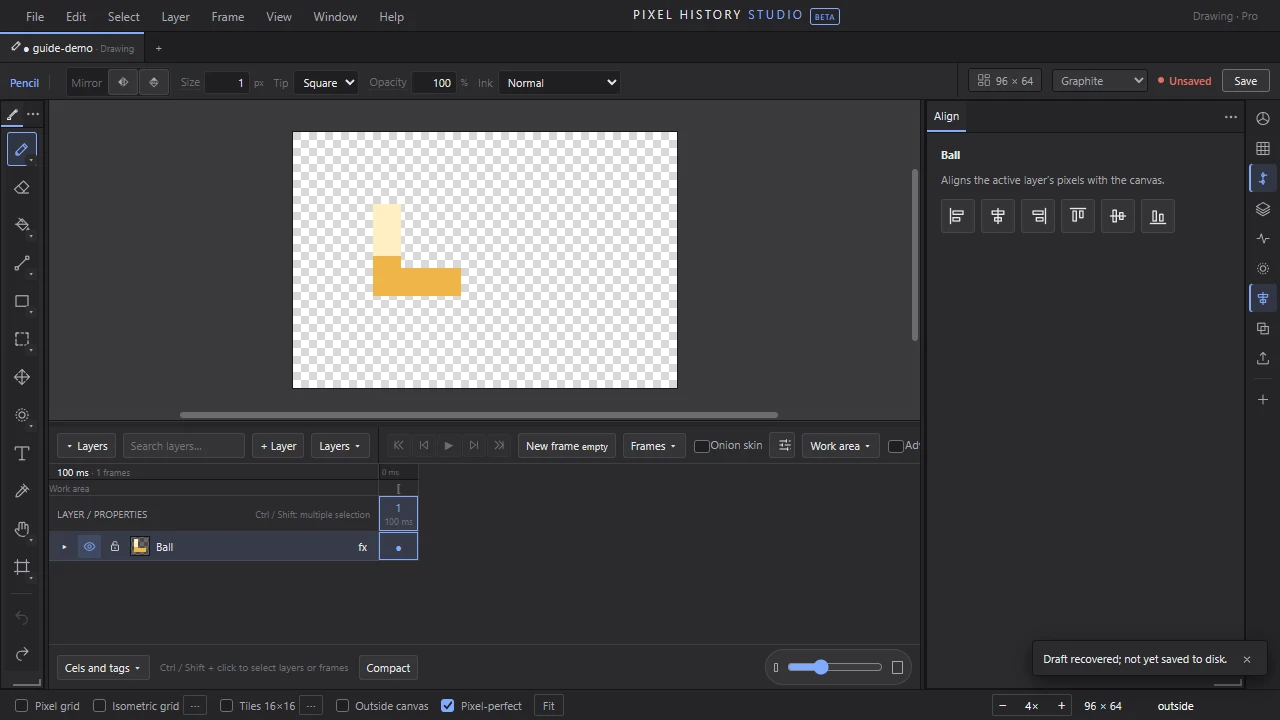
Position the active layer precisely with canvas-based alignment controls.
You will learn
- Align left
- Center horizontally
- Align right
Align left
Keep the asymmetric L on its own visible, unlocked layer. Open Window → Align and choose Relative to canvas. Click Align left and watch the artwork reach the left edge immediately. The operation uses the painted bounds of the active layer, not its transparent border. Undo before comparing another alignment so that the starting position stays clear.
Check: The L reaches the left edge without changing its size.
Center horizontally
Keep the asymmetric L on its own visible, unlocked layer. Open Window → Align and choose Relative to canvas. Click Center horizontally and watch the artwork reach the horizontal centre immediately. The operation uses the painted bounds of the active layer, not its transparent border. Undo before comparing another alignment so that the starting position stays clear.
Check: The L reaches the horizontal centre without changing its size.
Align right
Keep the asymmetric L on its own visible, unlocked layer. Open Window → Align and choose Relative to canvas. Click Align right and watch the artwork reach the right edge immediately. The operation uses the painted bounds of the active layer, not its transparent border. Undo before comparing another alignment so that the starting position stays clear.
Check: The L reaches the right edge without changing its size.
Align top
Keep the asymmetric L on its own visible, unlocked layer. Open Window → Align and choose Relative to canvas. Click Align top and watch the artwork reach the top edge immediately. The operation uses the painted bounds of the active layer, not its transparent border. Undo before comparing another alignment so that the starting position stays clear.
Check: The L reaches the top edge without changing its size.
Center vertically
Keep the asymmetric L on its own visible, unlocked layer. Open Window → Align and choose Relative to canvas. Click Center vertically and watch the artwork reach the vertical centre immediately. The operation uses the painted bounds of the active layer, not its transparent border. Undo before comparing another alignment so that the starting position stays clear.
Check: The L reaches the vertical centre without changing its size.
Align bottom
Keep the asymmetric L on its own visible, unlocked layer. Open Window → Align and choose Relative to canvas. Click Align bottom and watch the artwork reach the bottom edge immediately. The operation uses the painted bounds of the active layer, not its transparent border. Undo before comparing another alignment so that the starting position stays clear.
Check: The L reaches the bottom edge without changing its size.
If something does not work
The alignment button is disabled or moves too much
Choose a visible unlocked layer with painted pixels. The panel aligns all painted bounds of that layer. Put unrelated objects on separate layers before aligning the intended subject.