
Soften local transitions where a painted edge is intentionally too hard.
You will learn
- Choose Blur
- Make the first action and inspect its result
- Compare a narrow and a broad pass
Choose Blur
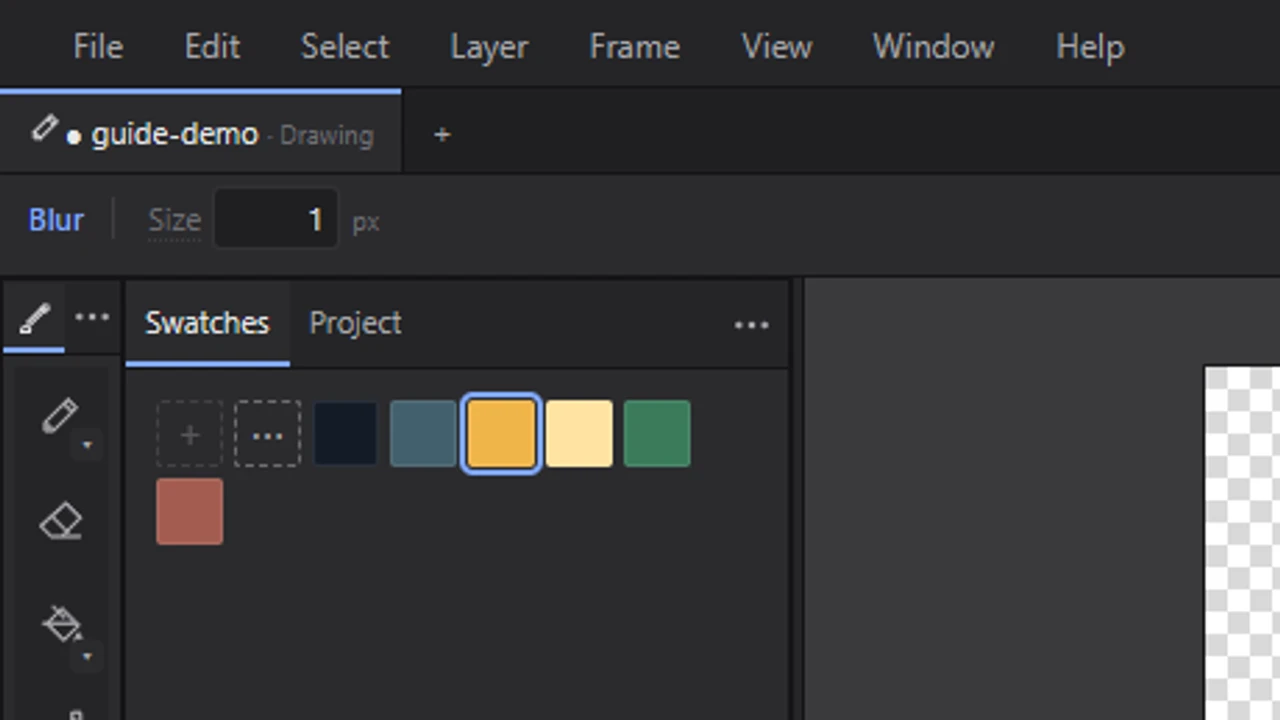
Find Retouch in the left toolbar. Open its arrow if it has one, then click Blur. Check the tool name and its options before touching the canvas. Work on a visible, unlocked layer. On a phone, open the tool options sheet.
Check: Blur is active.
Make the first action and inspect its result
Start with a solid dark-blue block touching a gold block. Choose Blur and Size 9. Press near the top of their shared vertical boundary, drag downward along it and release. The close-up shows intermediate colours appearing along the hard edge. The broad blue and gold areas outside the pass stay intact.
Check: Move the pointer away and compare the result with the starting image.
Compare a narrow and a broad pass
Use Size 1 and drag down the blue/gold boundary. Undo, choose Size 9 and repeat on the same original. The wider footprint affects more nearby pixels. Blur creates intermediate colours; a wider footprint does not turn a single pass into an arbitrarily strong blur. Inspect both edges at the same close zoom.
Check: Only a local strip changes in both comparisons.
Practise with a controlled second example
Select a small inner strip crossing the blue/gold boundary. Choose Blur at Size 9 and make one downward pass. The selection protects the outside silhouette. Ctrl+D removes the mask. Compare before and after using Undo; stop before the colour clusters lose their intended shape.
Check: Inspect the finished result with the pointer away.
Before you continue
Use Undo to compare the result with the original, then save when the change is useful. On a phone, open the tool options sheet when a control is not visible.
If something does not work
The result is not what I expected
Repeated passes can destroy clean clusters. Undo when the contour loses its shape; blur is not a substitute for placing deliberate shadow pixels.