
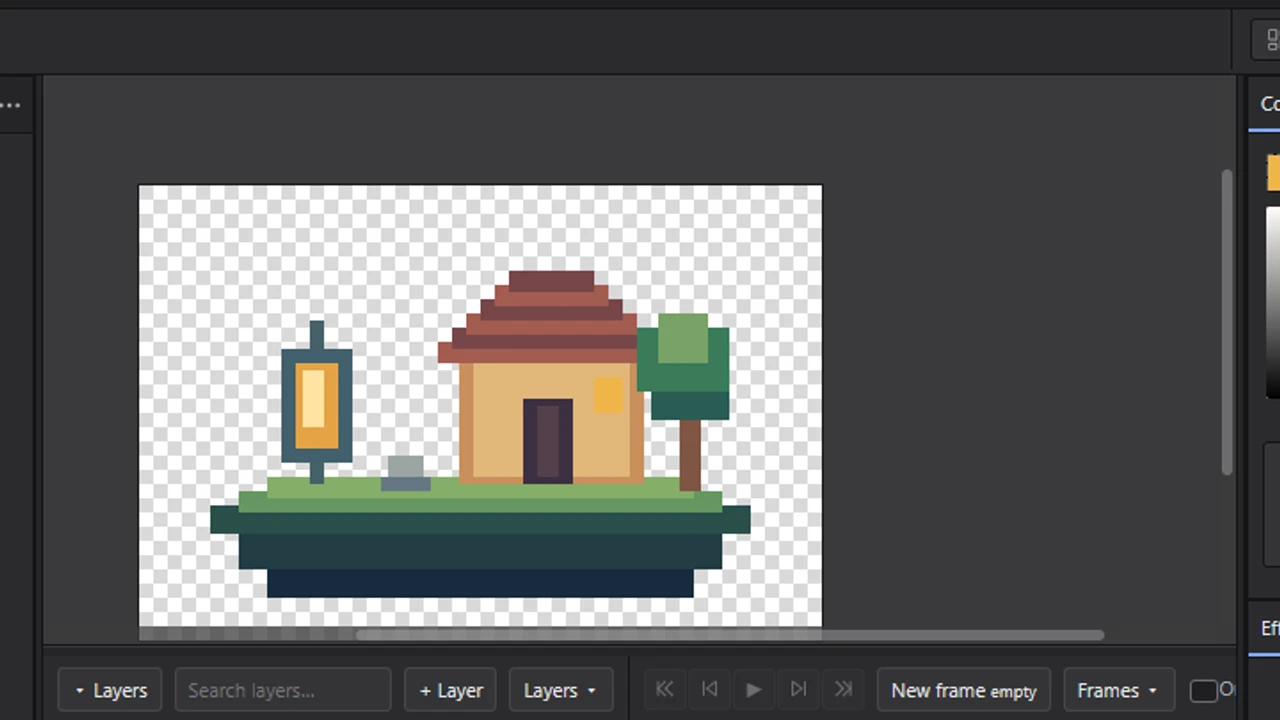
Move the view around a large drawing while leaving every document pixel in place.
You will learn
- Choose Hand, then drag the view
- Pan temporarily with Space
- Use the middle mouse button
Choose Hand, then drag the view
Open the Navigation group and choose Hand, or press H. Press on the canvas, drag to one side and release. The whole view follows your hand. The artwork is still in the same document position.
Check: The canvas and its artwork move together on the screen.
Pan temporarily with Space
Select Pencil. Hold Space, drag the canvas and release the pointer. Release Space to return to Pencil. This avoids changing tools just to inspect another part. A short Space press without a drag may operate animation playback; hold it while dragging for navigation.
Check: After releasing Space, Pencil is still selected.
Use the middle mouse button
Press the mouse wheel like a button, hold it and drag over the canvas. Release to stop panning. This is different from rotating the wheel to zoom. Keep the left button free so you do not paint accidentally.
Check: The view moves without drawing a stroke.
Find the artwork again
Move the view far enough that only part of the artwork remains visible. Click Fit in the canvas footer to recover the complete scene. Use a selection and Move when you actually need to reposition pixels inside the drawing.
Check: Fit restores an overview without changing the artwork.
Before you continue
Use Undo to compare the result with the original, then save when the change is useful. On a phone, open the tool options sheet when a control is not visible.
If something does not work
The result is not what I expected
Panning does not move the object. Use a selection and Move when you actually want to reposition artwork.