
Paint with a repeating library tile instead of a flat colour.
You will learn
- Find Pattern and its options
- Import the practice library and choose a pattern
- Paint your first repeating pattern
Find Pattern and its options
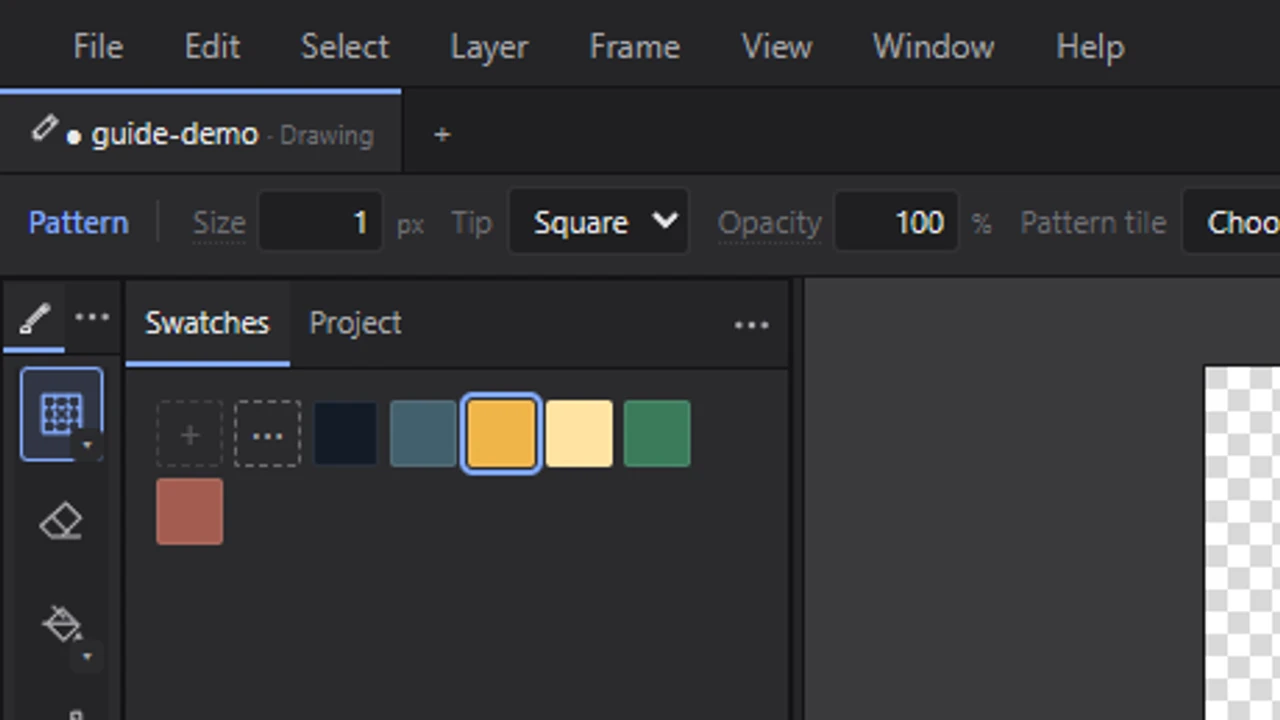
Open the Brushes arrow in the left toolbar. Click Pattern in the list. Look for its name in the top options row before touching the canvas. On a phone, choose the tool and open its options sheet.
Check: Pattern is active before you paint.
Import the practice library and choose a pattern
Start in a new practice project. Download practice-patterns.json below. Open Window → Library, click Import library and choose that JSON file. Import replaces the current library, so export your own first if you are using an existing project. The two resources appear. Choose Leaf tile for the upper pass and Brick tile for the lower one, keeping Size at 24. The individual PNG downloads are optional; use the JSON to follow the video.
Check: The imported resources supply leaves above and bricks below.
Paint your first repeating pattern
In Pattern tile, choose Leaf tile, the small leaf image already present in the demo Library. Set Size to 24 so several repeats are visible. Press on an empty part of the canvas, drag a short horizontal pass and release. Move the pointer away. The resource supplies its own green colours and transparent gaps.
Check: Several leaves repeat inside the broad brush mark.
Compare an 8 px and a 24 px footprint
Choose Leaf tile. Make a short pass at Size 8 and inspect it. Undo, set Size to 24 and repeat from the same point. A larger brush reveals more repetitions at once. It does not enlarge each leaf: the source resource still measures 8 by 8 pixels.
Check: The covered area grows, while each repeated leaf keeps its original size.
Trim the patterned footprint with the tip shape
Keep Size at 24 and Leaf tile selected. Choose Square and click once on the empty canvas. Move the pointer away to inspect the block of pattern. Undo, choose Round and repeat at the same point. The tip limits the painted footprint; it does not deform the source leaf.
Check: The round footprint omits the corners of the square footprint.
Compare solid and translucent paint
Make one test at 100% opacity. Undo, change to 30% and repeat from the same starting point. Inspect how the background shows through. Return to 100% for opaque artwork.
Check: The lower-opacity result lets the drawing or transparency underneath show through.
Keep the pattern inside a selected panel
Make a rectangular selection on an empty layer. Choose Pattern, Leaf tile and Size 24. Paint two horizontal passes that cross the selection edges. The selection limits the painted pixels. Press Ctrl+D and move away to inspect the repeated leaves inside the finished panel.
Check: The panel is patterned and the surrounding canvas remains empty.
Before you continue
Use Undo to compare the result with the original, then save when the change is useful. On a phone, open the tool options sheet when a control is not visible.
If something does not work
The result is not what I expected
A blank Pattern tile selector means there is no selected resource. This tool is for painting a canvas; a Tilemap document has its own stamp and tileset workflow.