
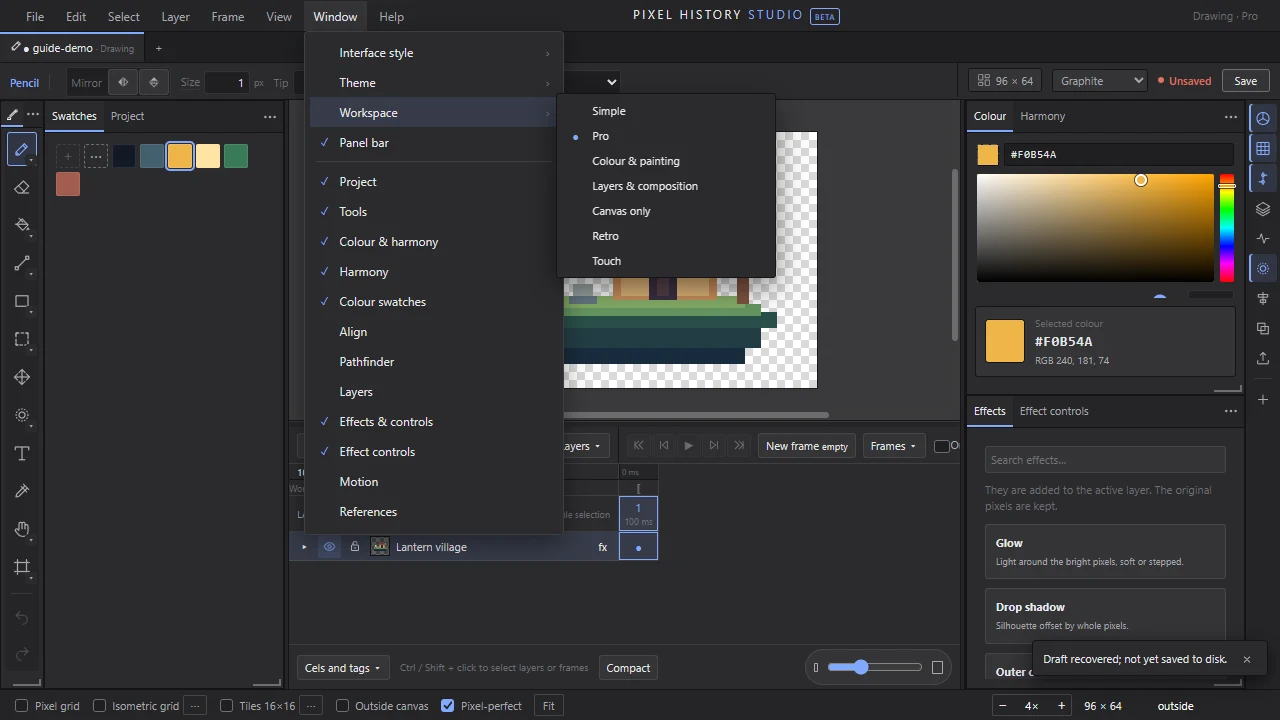
Choose a comfortable layout and find tools that do not fit in the first row of a small screen.
You will learn
- Choose a workspace
- Open grouped tools
- Use the options sheet on a phone
Choose a workspace
Open Window → Workspace and compare Simple with Pro. Simple reduces visible panels; Pro exposes more of the editing workspace. A layout named Pro does not itself grant access to restricted tools.
Check: The panel arrangement changes without changing the artwork.
Open grouped tools
The toolbar groups related tools under one button. Use its small arrow, a long press or a right-click to reveal alternatives. Selecting one remembers it in that group, so the main icon can change without a tool disappearing.
Check: The chosen tool name appears in its options.
Use the options sheet on a phone
Select the tool first, then open its options controls. Overflow controls belong to the same tool; they are not a different editing mode. Close the sheet before making a gesture where the sheet covers the canvas.
Check: Closing the options sheet leaves the canvas available for drawing.
Distinguish navigation from painting
Two fingers pan and zoom; a two-finger tap undoes and three fingers redo. After the editor detects a pen, the palm-rejection preference can make one finger pan instead of paint. Open Edit → Preferences → Canvas → Touch screen and inspect With a pen, the finger pans and does not paint. Turn it off if you want finger painting, then test on a spare layer. On a device where no pen has been detected, this preference alone is not a reason to assume finger painting is blocked.
Check: You can explain whether the current gesture paints, pans or zooms.
Restore a useful view
Use Fit when the artwork is out of view and reopen a panel from Window or the panel bar. Prefer a small number of useful panels on a phone instead of reproducing every desktop panel at once.
Check: Fit restores the complete document to view.
If something does not work
A finger moves the view instead of drawing
Close the tool sheet and check the active tool. After pen use, inspect palm rejection under Preferences → Canvas → Touch screen. Two fingers navigate. A reference in placement mode can also receive the gesture: finish placement or press Esc.