
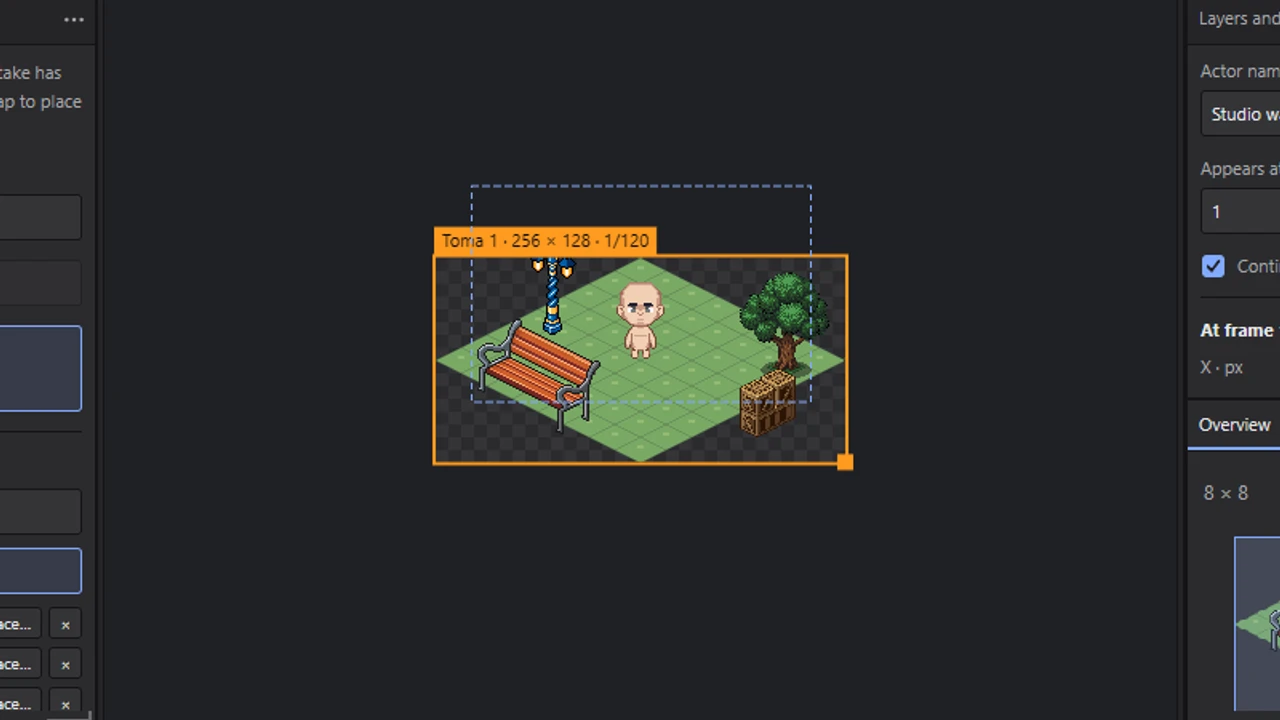
Import the original Studio walker, assign actions and directions, then test the real walking poses.
You will learn
- Create the character and import your animation
- Give each walking tag an action and direction
- Assign roles and rehearse
Create the character and import your animation
Activate Scene and open Characters. Create Studio walker, then Import animation and choose an Aseprite animation you own. The demo uses eight walking directions. Your tags and frame ranges may differ. All tags preserves each original frame range; inspect every row before importing.
Check: The assignment dialog shows the tag ranges of your animation.
Give each walking tag an action and direction
Untick giro normal and the duplicate frente. Use walk for the eight walking actions. Assign front to South, right diagonal to Southeast, right side to East, back-right diagonal to Northeast, back to North, back-left diagonal to Northwest, left side to West and left diagonal to Southwest. Correct misspelled tag suggestions manually. Add the eight animations.
Check: There is one walk clip for each of the eight directions.
Assign roles and rehearse
Set When walking to walk, then Add to take. A character is the source library; an actor is an instance in a take. Choose Rehearse and focus the map. Use WASD or arrows and diagonal key pairs. With no idle action assigned, releasing the keys holds a still pose. Rehearse does not write a recorded track.
Check: The correct walking pose changes with the movement direction.
Compare travel speed and pose timing
In Actor change Speed · px/s from 24 to 64 and compare a one-second rehearsal. Speed controls distance through the map. The imported frame durations control leg poses. A faster translation without a faster run cycle can look like sliding; configure a suitable run action when the source provides one. Shift uses the assigned run action and increases travel speed.
Check: The faster setting covers more distance in the same time.
If something does not work
The actor does not respond to the keyboard
Select the actor, choose Rehearse or Record actor and give the map keyboard focus. A text field must not be receiving the movement keys. Check that When walking has an assigned action and the character has its directional clips.