
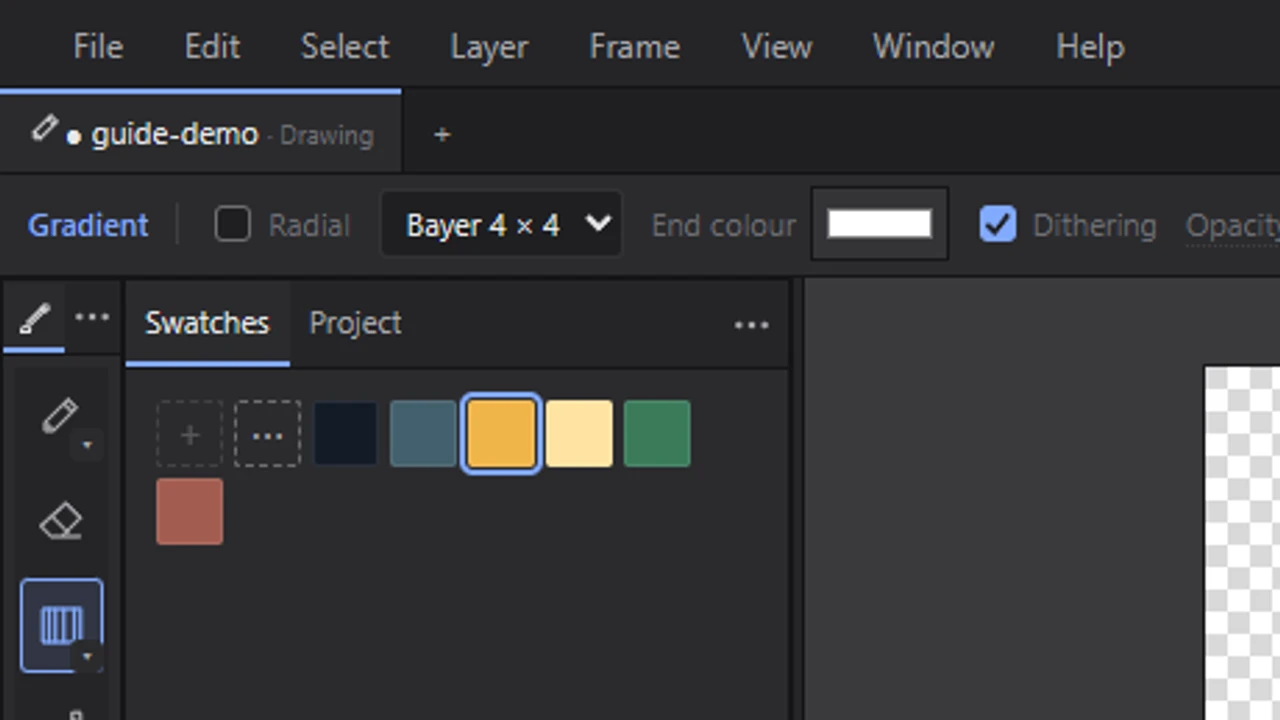
Blend a starting and ending colour along a direction, with optional pixel dithering.
You will learn
- Find Gradient and its options
- Drag between a start colour and an end colour
- Change both gradient colours
Find Gradient and its options
Open the Fills arrow in the left toolbar. Click Gradient in the list. Look for its name in the top options row before touching the canvas. On a phone, choose the tool and open its options sheet.
Check: Gradient is active before you paint.
Drag between a start colour and an end colour
Make a rectangular selection on an empty layer. Choose a dark blue as the active colour and a light blue in End colour. With Radial and Dithering off, press near the selection’s upper left, drag toward its lower right and release. The drag sets the transition direction and distance. Ctrl+D removes the selection after drawing.
Check: The selected rectangle changes gradually from dark to light blue.
Change both gradient colours
Draw the blue gradient once and undo. In the colour selector, change the active start colour to dark red. In End colour, choose gold. Undo also removes the selection: choose Rectangular selection and New selection, recreate the rectangle, then return to Gradient. Repeat the same drag. The video restores the region between tests. The two colour controls supply the new warm transition.
Check: The original cool transition is replaced by a dark-red-to-gold transition.
Compare a straight and radial gradient
Drag from the chosen start to the end with Radial off. Undo and repeat with Radial on. A linear gradient follows the drag direction; radial spreads from the start point. Make a selection first when only the sky should change. After each Undo, choose Rectangular selection and New selection, recreate the rectangle, then return to Gradient before the next test. The video restores that same region between comparisons.
Check: The two modes spread the same start and end colours differently.
Use pixel dithering in the transition
Compare Dithering off and on. The enabled result interleaves pixels instead of using only a smooth transition. Zoom into the middle of the gradient to inspect the pattern. After each Undo, choose Rectangular selection and New selection, recreate the rectangle, then return to Gradient before the next test. The video restores that same region between comparisons.
Check: The middle transition contains an ordered pixel pattern.
Compare the three Bayer matrices
Enable Dithering, choose Bayer 2×2, draw and undo. Repeat with 4×4 and 8×8. Compare the spacing of the pattern at a close zoom before choosing the texture that fits your artwork. After each Undo, choose Rectangular selection and New selection, recreate the rectangle, then return to Gradient before the next test. The video restores that same region between comparisons.
Check: Matrix size changes the repeated dither pattern.
Compare solid and translucent paint
Make one test at 100% opacity. Undo, change to 30% and repeat from the same starting point. Inspect how the background shows through. Return to 100% for opaque artwork. After each Undo, choose Rectangular selection and New selection, recreate the rectangle, then return to Gradient before the next test. The video restores that same region between comparisons.
Check: The lower-opacity result lets the drawing or transparency underneath show through.
Colour a small sky region in an illustration
For this second example, keep the illustration and select a rectangle of empty sky above and to the left of the lantern. Choose Gradient and the two blue colours. Drag diagonally across that selection, release and press Ctrl+D. The selection prevents the gradient from painting the house, lantern or ground.
Check: A blue sky rectangle appears while the existing objects retain their colours.
Before you continue
Use Undo to compare the result with the original, then save when the change is useful. On a phone, open the tool options sheet when a control is not visible.
If something does not work
The result is not what I expected
A short drag compresses the transition into a small distance. Undo and use a longer drag if the result looks like a hard band.