
Sketch a closed filled silhouette with a single freehand gesture.
You will learn
- Choose Contour and find its options
- Draw a silhouette and release to fill it
- Compare solid and translucent paint
Choose Contour and find its options
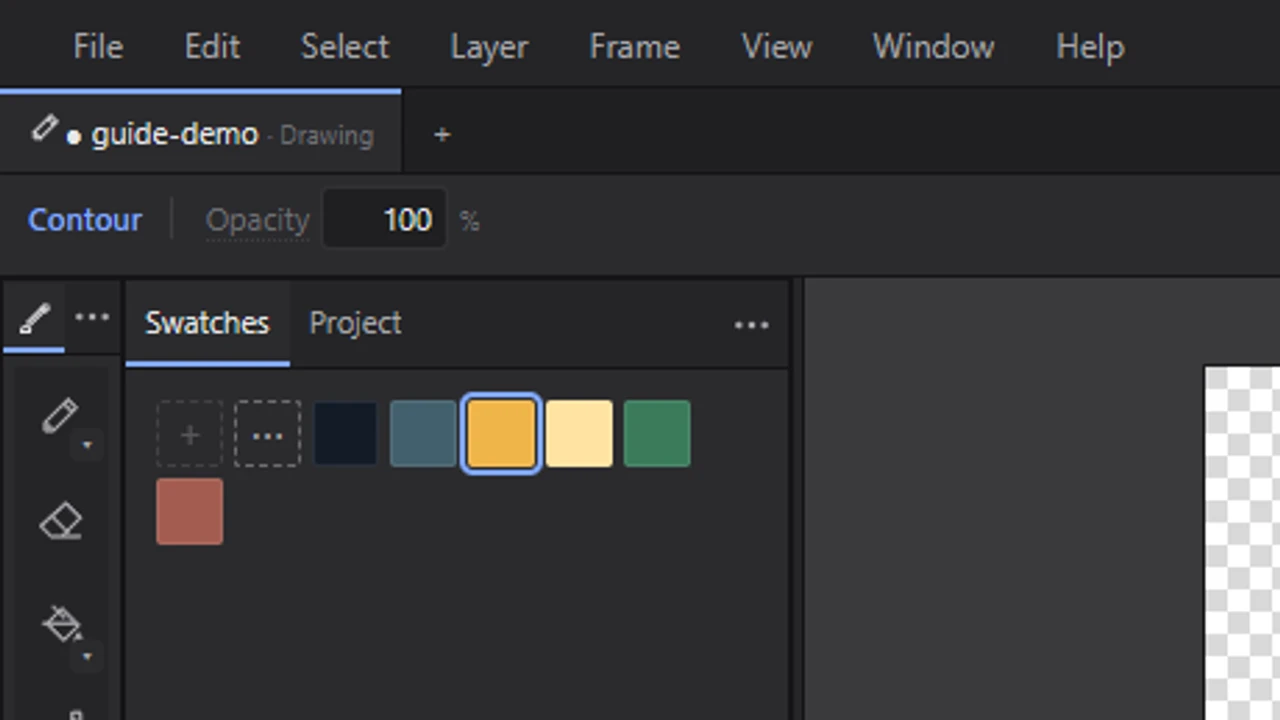
Open the Shapes arrow in the left toolbar and click Contour. Check its name in the options row. Choose a visible, unlocked layer. On a phone, select the tool and open its options sheet before drawing.
Check: Contour is active before you start the gesture.
Draw a silhouette and release to fill it
Press on an empty layer and keep holding while tracing the outside of a broad leaf shape. Return toward the starting point and release. The enclosed shape fills with the active colour. Use a broad, simple silhouette first so you can see the difference between tracing its boundary and painting its interior.
Check: A solid leaf-like silhouette remains without a pointer covering it.
Compare solid and translucent paint
Make one test at 100% opacity. Undo, change to 30% and repeat from the same starting point. Inspect how the background shows through. Return to 100% for opaque artwork.
Check: The lower-opacity result lets the drawing or transparency underneath show through.
Add a smaller highlight shape
Choose a medium green and draw a broad leaf silhouette. Release. Choose a lighter green and draw a smaller closed shape inside the upper part of the leaf. Each release commits a separate filled contour. Use Undo to correct only the highlight if its shape is too large.
Check: The leaf has a lighter internal shape without changing its outer silhouette.
Before you continue
Use Undo to compare the result with the original, then save when the change is useful. On a phone, open the tool options sheet when a control is not visible.
If something does not work
The result is not what I expected
This tool paints a filled shape. If you only wanted a selection boundary, choose Lasso instead.