
Hide and reveal parts of a layer through a separate mask.
You will learn
- Add a mask, hide and reveal
- Compare disabling with removing
- Commit only after reviewing the cut-out
Add a mask, hide and reveal
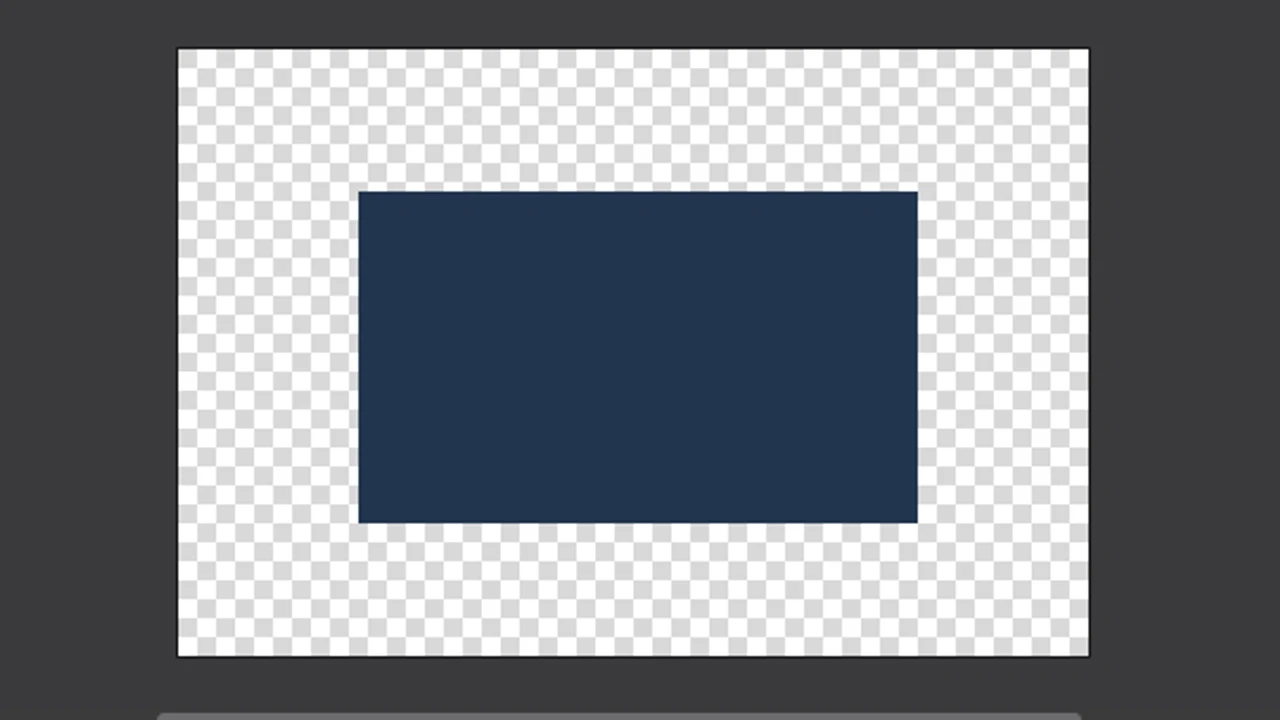
On a painted layer use Layer → Mask → Add, revealing all. Select the mask thumbnail as the editing target. Pencil with black hides the blue strip; white reveals the original pixels again. Grey partially reveals. The video shows both directions. Select the artwork thumbnail before returning to ordinary colour painting.
Check: Black hides and white restores the source.
Compare disabling with removing
Start with the masked strip. Toggle mask temporarily shows the whole source while keeping the editable mask. Toggle it again to restore the cut-out. Remove mask discards that mask and reveals the complete artwork. Undo brings it back. Neither action is Apply mask.
Check: The complete source is recoverable without repainting.
Commit only after reviewing the cut-out
Keep a backup of the source before Apply mask. Applying writes the visible result to the layer pixels and removes the separate mask thumbnail. The hidden strip stays absent. Undo restores the editable mask in this session; keep an editable source if you need to revise the decision later.
Check: The cut-out remains after its separate mask disappears.
If something does not work
Black paint appears on the artwork
Undo the mistaken stroke, select the separate mask thumbnail and check the mask-editing notice before painting again. Black hides, white reveals and grey partially reveals. Removing a mask reveals the original; applying it commits the hidden region.