
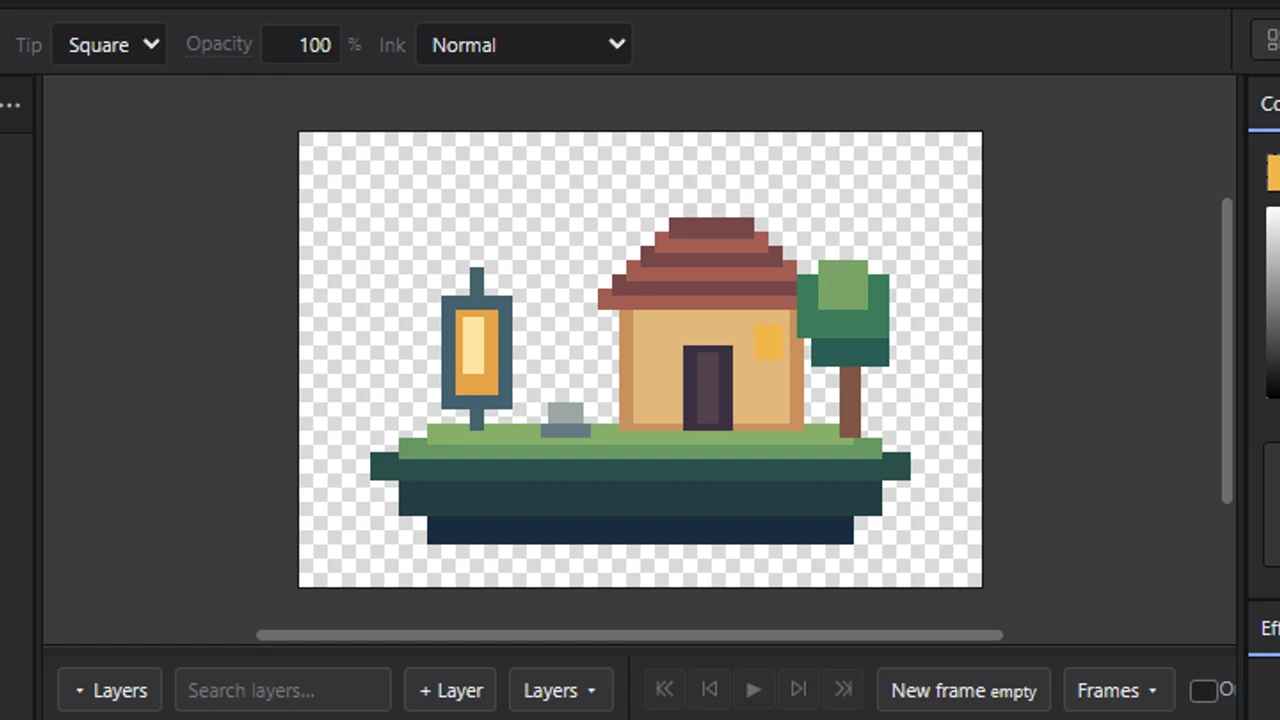
Inspect single pixels and the complete composition at different magnifications.
You will learn
- Zoom in and out with the mouse wheel
- Point at the detail you want to inspect
- Use Zoom and Alt-click to step back
Zoom in and out with the mouse wheel
Move the pointer over the artwork before scrolling. With the default wheel preference, scroll upward to enlarge the view and downward to step back. Use a few small wheel movements, then stop and inspect the pixels. Do not scroll over Size or another numeric control: there the wheel edits that control.
Check: The zoom value changes; the document still has the same pixel dimensions.
Point at the detail you want to inspect
Place the pointer on the lantern highlight and scroll up. The view zooms around that position, which helps keep the detail under your pointer. Scroll back, point at the roof and repeat. If the detail leaves the view after other navigation, use Hand or Fit to recover it rather than resizing the document.
Check: Pointing at different details changes where the view centres as it enlarges.
Use Zoom and Alt-click to step back
Open Navigation in the tool column and select Zoom, or use its default key Z. Click a detail to enlarge it. Hold Alt and click to reduce magnification. A zoom click changes the view rather than painting the canvas. Return to Pencil when you want to draw again.
Check: Ordinary clicks zoom in and Alt-clicks zoom out without adding pixels.
Recover the whole drawing with Fit
If you are too close to recognise the artwork, click Fit in the canvas footer. You can also choose View → Fit canvas. The editor chooses a useful magnification for the available canvas space. Opening or resizing panels changes that space, so use Fit again afterwards if necessary.
Check: You can see the complete artwork again and its dimensions are unchanged.
If the wheel scrolls instead, check Preferences
Open Edit → Preferences → Canvas. The wheel can be configured to zoom or pan. In pan mode, use Ctrl plus the wheel to zoom; Shift changes scrolling to horizontal. Choose the behaviour that suits your mouse or trackpad, close Preferences and try it over the canvas.
Check: The wheel behaviour matches the selected preference.
Use the canvas minus and plus buttons
The canvas footer also provides minus and plus controls beside the current zoom value. Press plus to enlarge one step and minus to step back. They are useful when you do not have a mouse wheel. On touch screens use the navigation controls in the mobile interface; avoid trying to paint while a navigation sheet covers the canvas.
Check: Both buttons change magnification and never the document’s pixel size.
Before you continue
Use Undo to compare the result with the original, then save when the change is useful. On a phone, open the tool options sheet when a control is not visible.
If something does not work
The result is not what I expected
Zoom is a view operation. Changing image size instead resamples or changes document pixels and is a different command.