
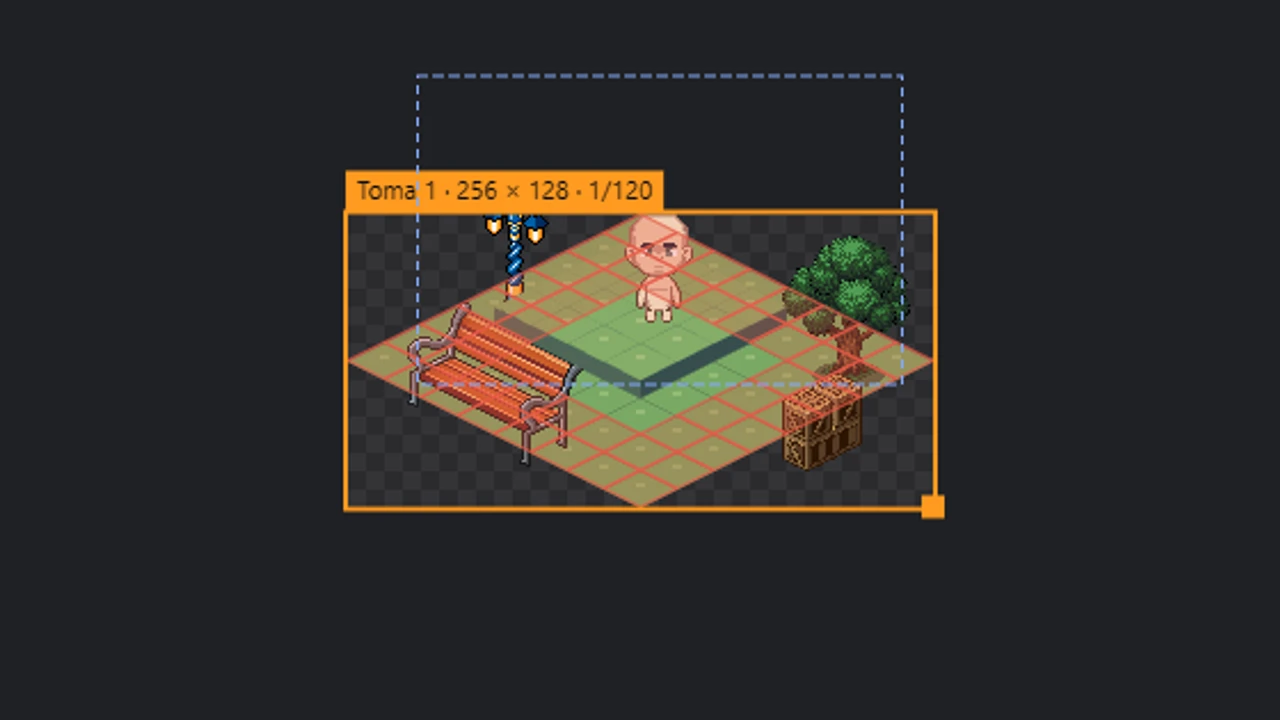
Place an actor on a raised terrace, release it without dropping floors and compare a blocking bench with a passable one.
You will learn
- Choose the support floor explicitly
- Compare blocked and free movement
- Keep depth separate from collision
Choose the support floor explicitly
On the raised map, select the actor and choose Depth → Above Terrace 2. This sets its support to level 2 and lifts the artwork by two level heights. Choose Move actors, drag a short distance across the terrace and release. Floor (level) must still read 2. Use Floor to change support deliberately; changing drawing order among an object layer does not by itself make the actor stand on that object.
Check: Releasing the actor keeps its support on the upper terrace.
Compare blocked and free movement
Open the bench piece settings and choose Always: its base under Collision in Scene. Save, put the actor at X 87 and Y 50 with Speed 64 px/s, then Rehearse down towards the bench. Its red footprint stops movement. Stop with Escape, change the same piece to Never, reset the actor and repeat. It can now pass the former stop point. Test from more than one direction before recording a final take.
Check: The same input stops at the blocking footprint and passes when it is disabled.
Keep depth separate from collision
The blue line controls front and back according to actor feet. The red footprint controls where movement stops. A piece can look behind the actor while still blocking its path, or be non-blocking and still draw in front. Adjust each rule for its purpose and save the map with its character library and takes.
Check: Depth, support and collision can be checked independently.
If something does not work
The actor does not respond to the keyboard
Select the actor, choose Rehearse or Record actor and give the map keyboard focus. A text field must not be receiving the movement keys. Check that When walking has an assigned action and the character has its directional clips.