
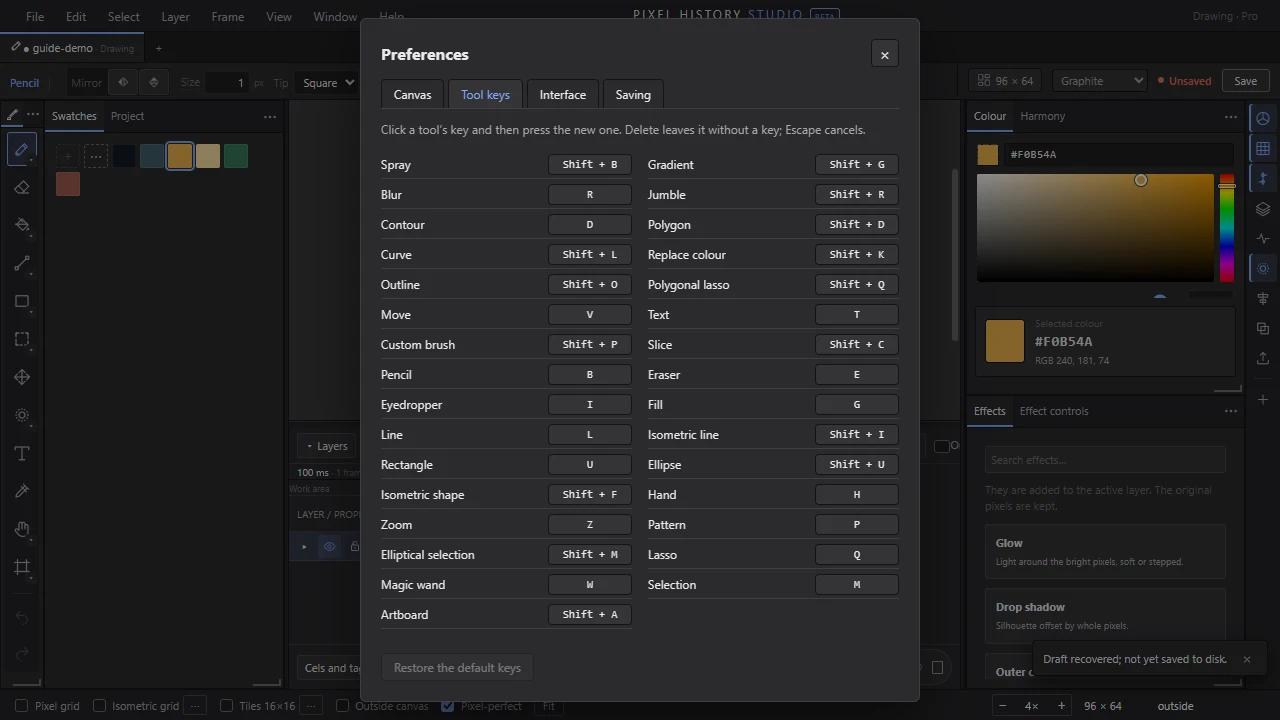
Adapt navigation and input without confusing view settings with changes to the artwork.
You will learn
- Check the shortcut beside the command
- Adjust wheel behaviour
- Check pen-only and pressure input
Check the shortcut beside the command
Menus and tool labels show available shortcuts. Use the shortcut shown in your current interface, particularly after customising keys. Tool letter shortcuts and menu shortcuts are managed through their respective controls.
Check: The shortcut you press matches the current menu or tool label.
Adjust wheel behaviour
Open Preferences to choose whether the wheel zooms or scrolls. If a familiar gesture suddenly behaves differently, inspect this setting before changing canvas dimensions or resetting the project.
Check: Wheel behaviour matches the selected navigation preference.
Check pen-only and pressure input
In Edit → Preferences → Canvas, inspect the Touch screen checkbox With a pen, the finger pans and does not paint. It provides palm rejection after the editor detects a pen; it does not unconditionally disable touch on a finger-only device. Disable it to allow finger painting after pen use. Pen pressure and Stabiliser are separate settings in Edit → Pen and tablet input; start Stabiliser at 0 if you need an immediate response.
Check: The input preference explains whether fingers can paint.
Choose a useful checkerboard and layout
Checkerboard size and tone help you see transparent edges but do not paint a background. Appearance and workspace settings change the interface; export a preview to judge the artwork independently of those aids.
Check: Checkerboard changes do not appear as painted pixels in an export.
If something does not work
A shortcut types into a field instead of changing tools
Finish editing the field and return focus to the canvas. Follow the current shortcut label; customised keys may differ from examples. Inspect Stabiliser if a drawing stroke intentionally trails behind the pointer.