
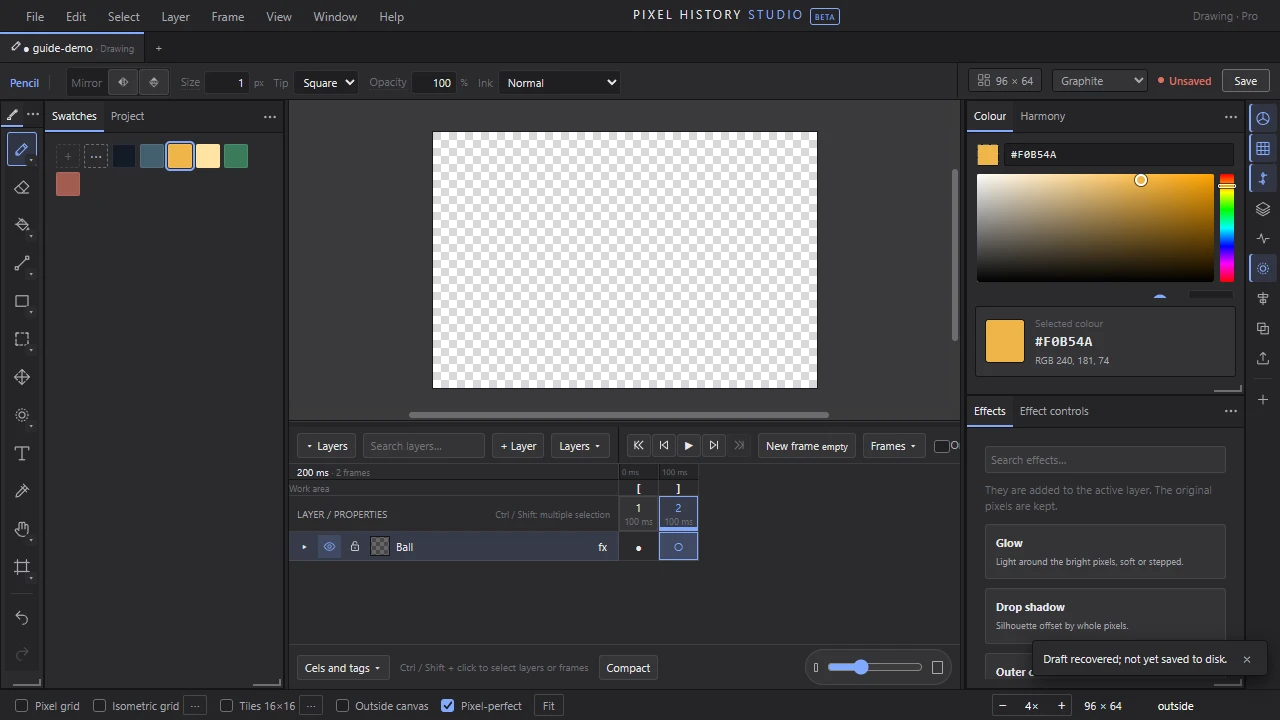
Create an animation from distinct poses and control how long each pose remains visible.
You will learn
- Create a clean pose
- Duplicate, edit and compare
- Hold one pose for longer
Create a clean pose
Start with a small Drawing and a filled ball on Frame 1. Open Frame → New frame (empty). Frame 2 starts without the painted ball. Select Frame 1 again to check that its drawing remains intact. Use a clean frame when you want to draw a different silhouette from scratch.
Check: Frame 1 is painted; Frame 2 is empty.
Duplicate, edit and compare
Restore the single painted frame. Frame → Duplicate frame makes a copy. On Frame 2 paint a green mark in the centre of the ball. Select Frames 1 and 2 alternately. Independent cels can start with identical pixels and then change separately. Linking is a different operation, explained in its own lesson.
Check: Only the second pose receives the new mark.
Hold one pose for longer
Use four different ball positions at 180 ms each. Play twice, then double-click Frame 2 and enter 600 in Exact duration of frame 2. Press Enter and play twice again. The second pose waits longer. Milliseconds measure how long a drawing remains visible; increasing this number slows that pose rather than increasing frames per second.
Check: The second pose pauses while the other three keep their durations.
Change a selected range
Select Frame 1 and Shift-click Frame 4. Open Frames and check that four frames are selected before entering 300 in Duration of selected frames. Close the menu. All four poses now last 300 ms: one loop takes 1.2 seconds and the video shows two. Select only the intended range before changing its timing.
Check: Every selected frame shows 300 ms.
Review the loop seam
Play the original four poses twice. Watch the return from the rightmost ball to the first position: the jump comes from the drawings, not a broken player. Compare the first and last frames while stopped. Draw intermediate return poses if you need a smooth return, or use a deliberately planned ping-pong tag in the next lessons.
Check: You can identify whether the last-to-first transition is intentional.
If something does not work
My two poses look identical
Duplicate frame starts with the same pixels. Select Frame 2 and change a visible detail before playing. If cels are linked or reused, inspect that relationship and make the intended pose independent before editing it.