
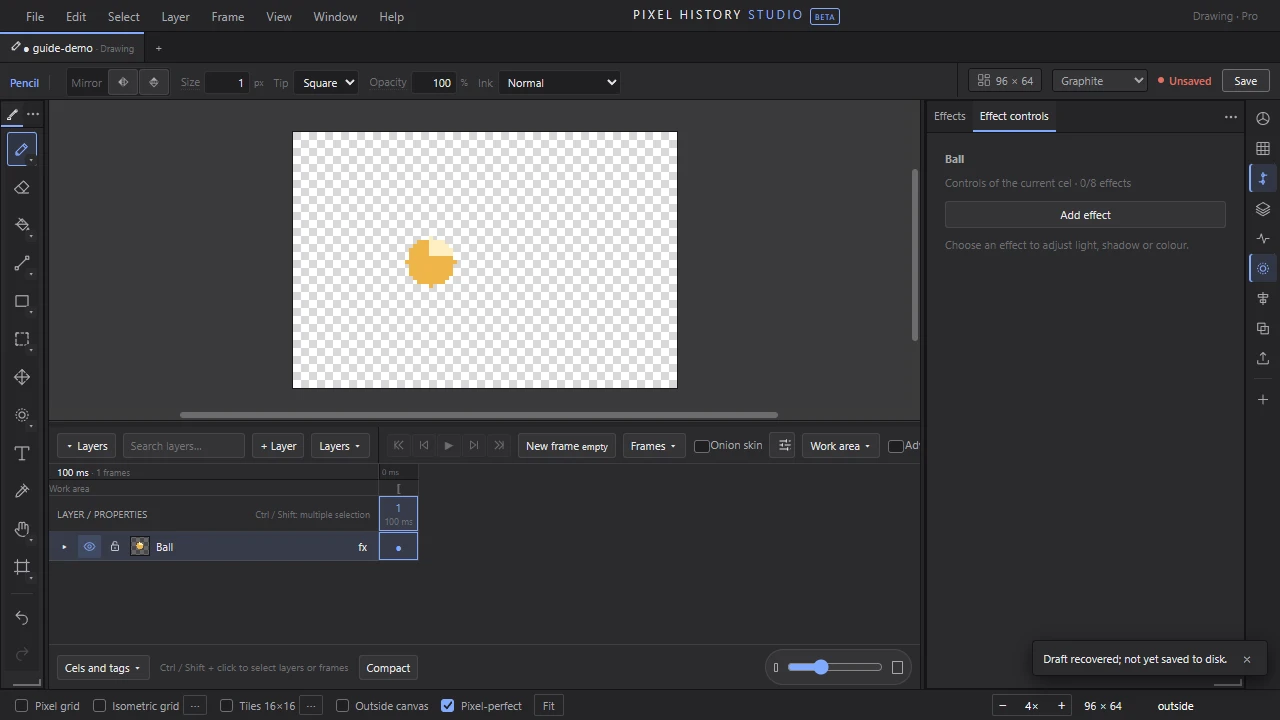
Add a layer effect, adjust it and compare it with the untouched source.
You will learn
- Glow
- Drop shadow
- Outer outline
Glow
Keep the ball on its own layer. In Window → Effects & controls select Effects and add Glow. Change Radius px in Effect controls and inspect the result around the bright pixels. Compare On and off, then Delete effect. The source pixels remain available. Effects belong to the current cel; use Copy effects to this track in every frame deliberately when animating.
Check: The effect changes while the source survives its removal.
Drop shadow
Keep the ball on its own layer. In Window → Effects & controls select Effects and add Drop shadow. Change Offset X in Effect controls and inspect the result offset from the source silhouette. Compare On and off, then Delete effect. The source pixels remain available. Effects belong to the current cel; use Copy effects to this track in every frame deliberately when animating.
Check: The effect changes while the source survives its removal.
Outer outline
Keep the ball on its own layer. In Window → Effects & controls select Effects and add Outer outline. Change Radius px in Effect controls and inspect the result around the outside edge. Compare On and off, then Delete effect. The source pixels remain available. Effects belong to the current cel; use Copy effects to this track in every frame deliberately when animating.
Check: The effect changes while the source survives its removal.
Rim light
Keep the ball on its own layer. In Window → Effects & controls select Effects and add Rim light. Change Offset X in Effect controls and inspect the result on the edge facing the chosen direction. Compare On and off, then Delete effect. The source pixels remain available. Effects belong to the current cel; use Copy effects to this track in every frame deliberately when animating.
Check: The effect changes while the source survives its removal.
Colour tint
Keep the ball on its own layer. In Window → Effects & controls select Effects and add Colour tint. Change Intensity % in Effect controls and inspect the result across the existing painted area. Compare On and off, then Delete effect. The source pixels remain available. Effects belong to the current cel; use Copy effects to this track in every frame deliberately when animating.
Check: The effect changes while the source survives its removal.
If something does not work
The whole scene glows instead of just the lamp
Glow processes the active layer or cel. Isolate the lamp before adding it. If little is visible, compare intensity, radius and light threshold one at a time; check the current frame in animation.