
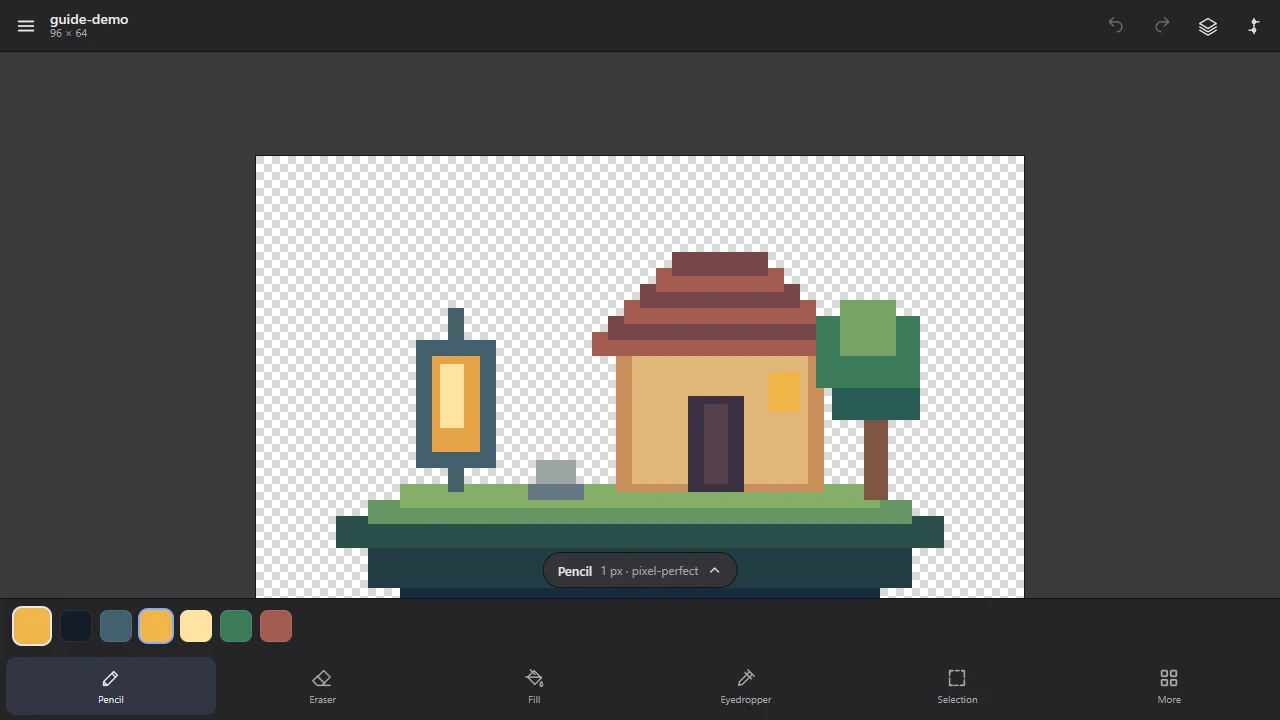
Choose a touch layout, separate painting from navigation and check pen detection before enabling palm rejection.
You will learn
- Choose the touch layout
- Make one clear test mark
- Navigate without marking the drawing
Choose the touch layout
Open View → Interface. Choose Clean canvas for corner controls and the tool wheel, or Thumb bar for controls at the bottom. Automatic uses the clean layout on touch devices; a narrow desktop window alone does not make the pointer a touch device.
Check: The chosen layout places controls in the corners or in the bottom thumb bar.
Make one clear test mark
Choose Pencil, 4 px and a visible colour. Make a short stroke in the centre. Before trying gestures, confirm that you can paint. If the canvas only moves, switch away from Hand and inspect the pen/finger preference.
Check: The test gesture leaves a coloured mark instead of only moving the view.
Navigate without marking the drawing
Use Hand when you want an explicit navigation mode. On touch hardware, use two fingers to pan and pinch to change zoom. Begin both contacts before making a long movement; do not start with a long one-finger Pencil stroke and expect it to become a gesture retroactively.
Check: The view changes while the artwork pixels remain unchanged.
Understand pen and finger input
In Canvas preferences, Finger moves canvas when a pen is used takes effect after the browser has reported a pen. With that enabled, a finger pans after pen detection. Disable it if you want to paint with a finger again. A stylus reported as a mouse cannot supply true pen pressure.
Check: After pen detection, you know whether a finger should paint or pan under the current preference.
Check both orientations
Try a small stroke in portrait, rotate the device, then open the tool picker and colour controls. Close panels before a long drawing session. Save the editable project before leaving the browser or changing apps.
Check: Tools and colour remain reachable in both orientations, and the project has a saved copy.
If something does not work
My finger stops painting after I use a pen
Disable the pen/finger navigation preference, or keep using the pen to paint and a finger to move the view.