
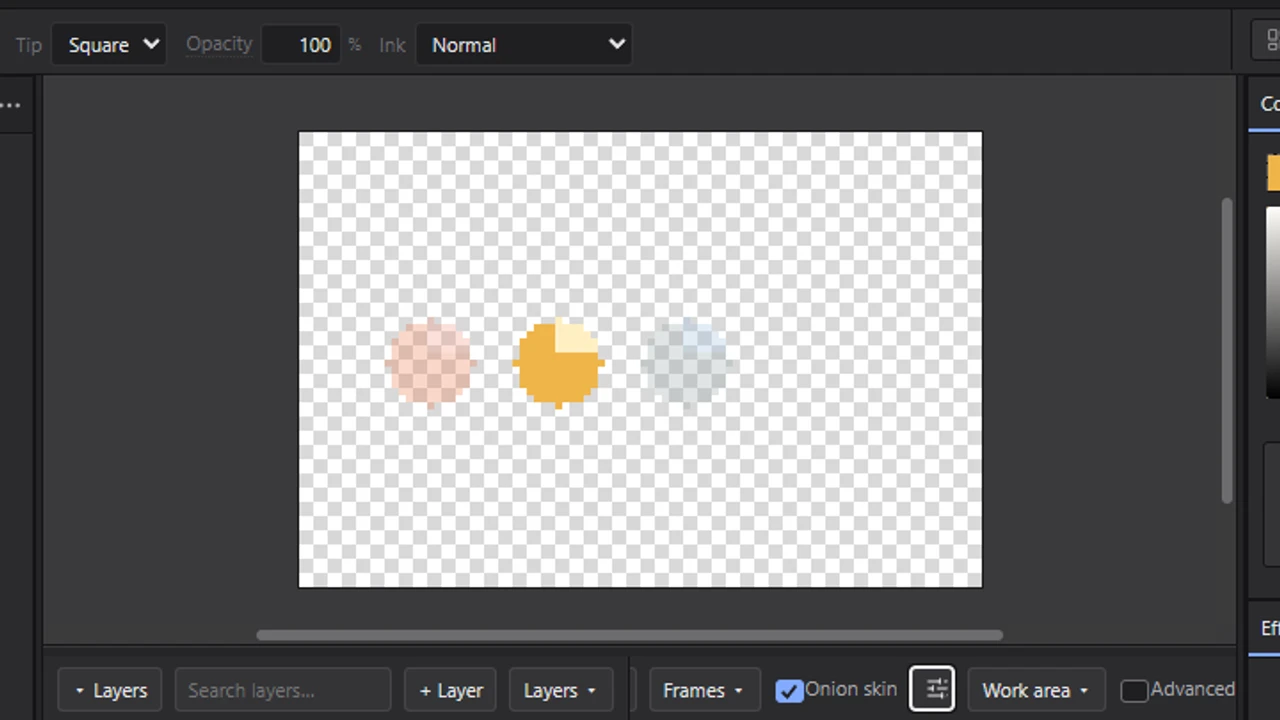
Use neighbouring-frame ghosts to judge spacing without painting those ghosts into the artwork.
You will learn
- Compare the previous and next pose
- Tune range and strength
- Correct the active cel and remove the aid
Compare the previous and next pose
Use four different ball positions and select Frame 2. Enable Onion skin. Open Onion skin settings and set Frames before to 1 and Frames after to 1. The solid ball is the editable current cel. The tinted balls show where neighbouring poses were drawn. Clicking a ghost does not select its frame: use the timeline.
Check: One neighbouring ghost appears on each side of the current pose.
Tune range and strength
Select Frame 3. In Onion skin settings choose two frames before and one after. Lower Onion skin opacity to 25%. More ghosts help compare spacing, but they should remain visually separate from the actual drawing. These settings change the reference overlays, not the animation frame durations or painted layers.
Check: The current pose remains clear with fainter neighbouring poses.
Correct the active cel and remove the aid
Return to Frame 2. With the ghosts visible paint a small green mark on the solid ball, then disable Onion skin. Compare Frames 1 and 2: only the current independent cel changed. Finally play the animation without the overlay. Onion skin helps place drawings; timing and the loop seam still need playback review.
Check: The green mark belongs to Frame 2; ghosts are absent from the source pixels.
If something does not work
The ghost is visible but I cannot edit it
That is expected: select its frame in the timeline to edit that pose. Onion skin itself is not a painted layer.