
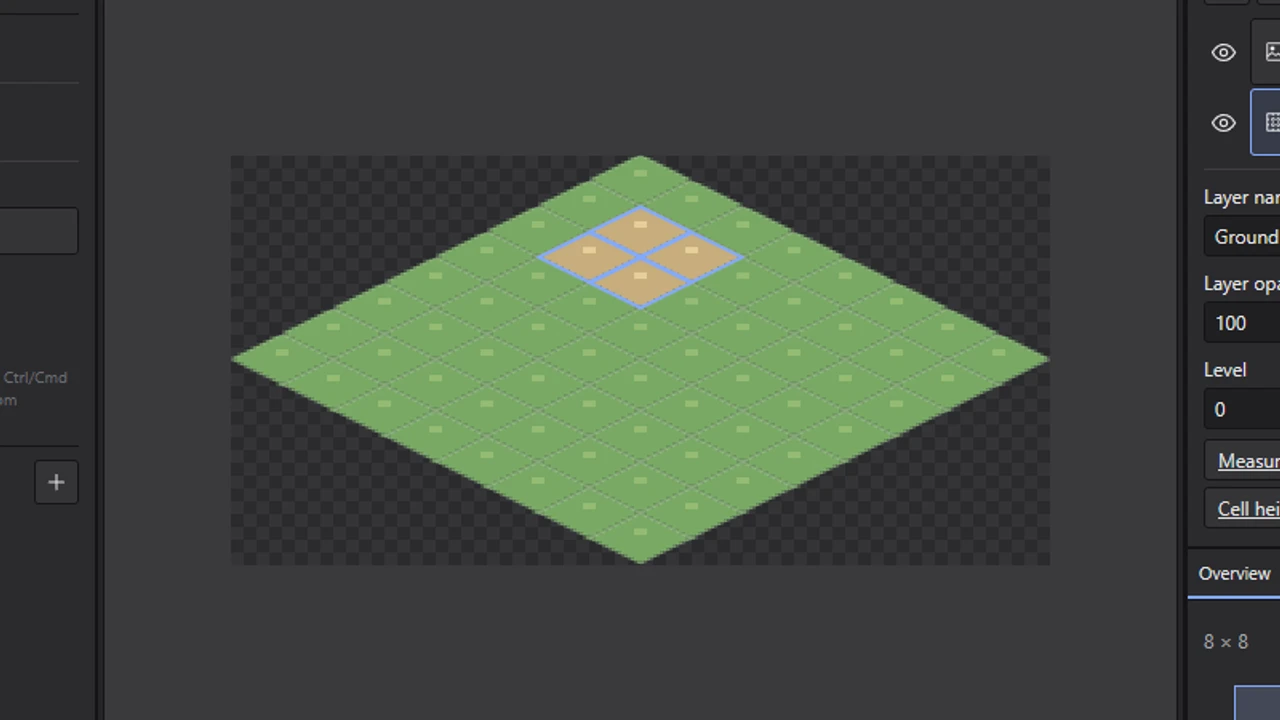
Work on a small asymmetric patch so you can see which cells move, remain or change orientation.
You will learn
- Select and drag a copy
- Mirror and rotate an asymmetric patch
Select and drag a copy
Paint a small path patch on Ground. Choose Select cells and drag around its columns and rows. Hold Ctrl while dragging inside the selection to move a copy to another part of the map. The original stays in place. Drag without Ctrl when you want to relocate the selected patch. Undo returns to the previous arrangement.
Check: A copy appears while the source patch remains.
Mirror and rotate an asymmetric patch
For this rotation example, use square tiles on an orthogonal map, paint an L on a separate Path pattern layer above the floor and select the whole L. Open Select → Flip horizontally and inspect the mirrored arrangement. Undo and choose Select → Rotate. A symmetric rectangle would hide some of these changes, which is why this example uses an L. Rotate also rotates each tile image. A rectangular isometric floor diamond rotated 90° no longer fits its cell; use compatible square artwork for this operation. Deselect when finished.
Check: The L changes orientation while retaining its tile artwork.
If something does not work
A tool does not paint
Select a pattern layer that is visible and unlocked, choose at least one tile in Patterns and make sure you are using a map editing tool. An object layer offers independent object placement instead of cell fills and shapes.