
Understand where your editable files live and how to keep several related documents together.
You will learn
- Connect the project location
- Create related workspaces
- Read the save status
Connect the project location
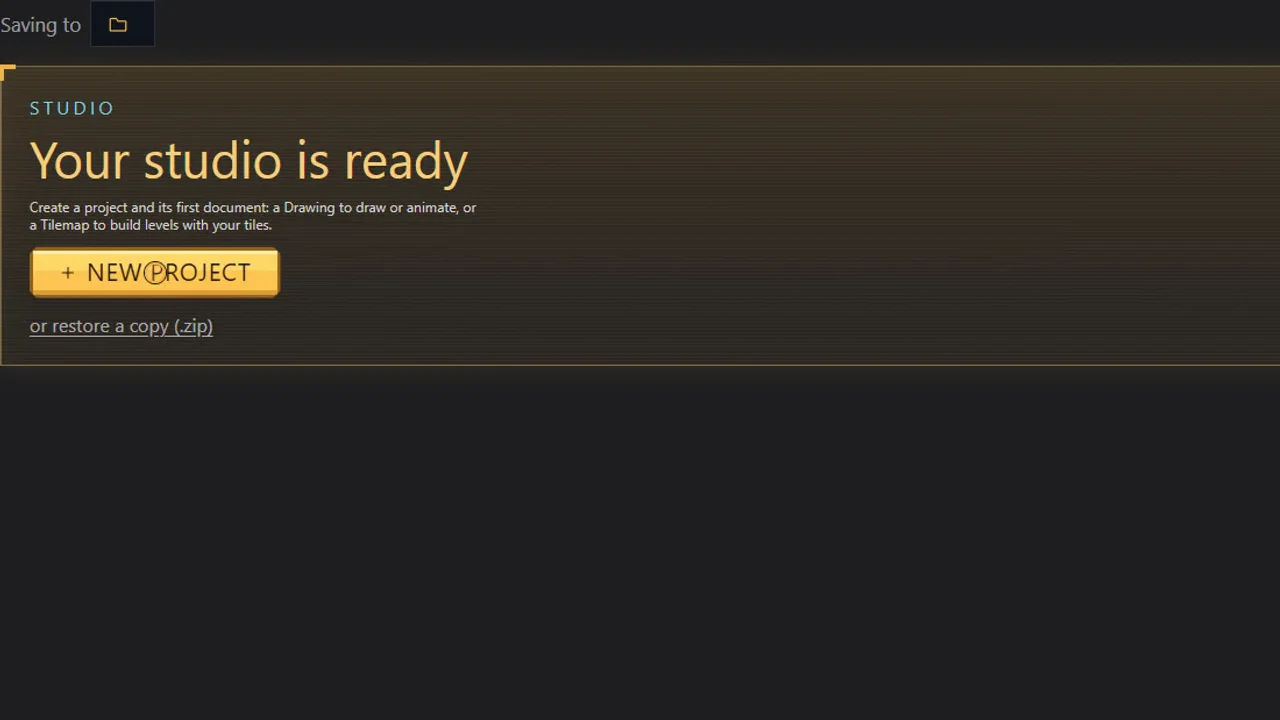
Projects belong to a storage location. On supported desktop browsers, choose the project folder and grant the requested access. In browsers using internal storage, keep track of the browser and profile that hold your work.
Check: The location is connected or browser storage is explicitly selected.
Create related workspaces
Use one project for a group of related assets and add a workspace for each drawing, animation or map. Name them for their purpose: Character idle, Background or Village map is easier to recognise than several untitled documents.
Check: Two related workspaces have distinguishable names.
Read the save status
Save explicitly after important changes and watch for success or an error. The browser’s recovery copy is a safety net; a recovered draft may still need saving to its project folder. Do not dismiss a folder-permission error as a successful save.
Check: The save indicator finishes successfully without permission errors.
Download a project backup
Use the project backup/download action to keep an editable copy outside the browser. A flattened PNG is useful for sharing but does not replace the source project. Test reopening a backup before relying on it as your only copy.
Check: The downloaded backup can be reopened as editable work.
Move between devices deliberately
A project listed from another device does not necessarily have its files available on this one. Transfer the appropriate backup or use an authorised online project. Your account identifies you; it does not make every local folder globally accessible.
Check: The destination device opens the transferred or authorised online source.
Before you continue
Keep the editable project and an exported preview together, with names that make their purpose clear. Close and reopen a workspace after the first successful save.
If something does not work
The project is listed but its files do not open
Reconnect its original folder and approve access when requested. A browser recovery draft may be newer than the folder copy; review recovery messages before saving over either version. A listing alone does not transfer local files to another device.