
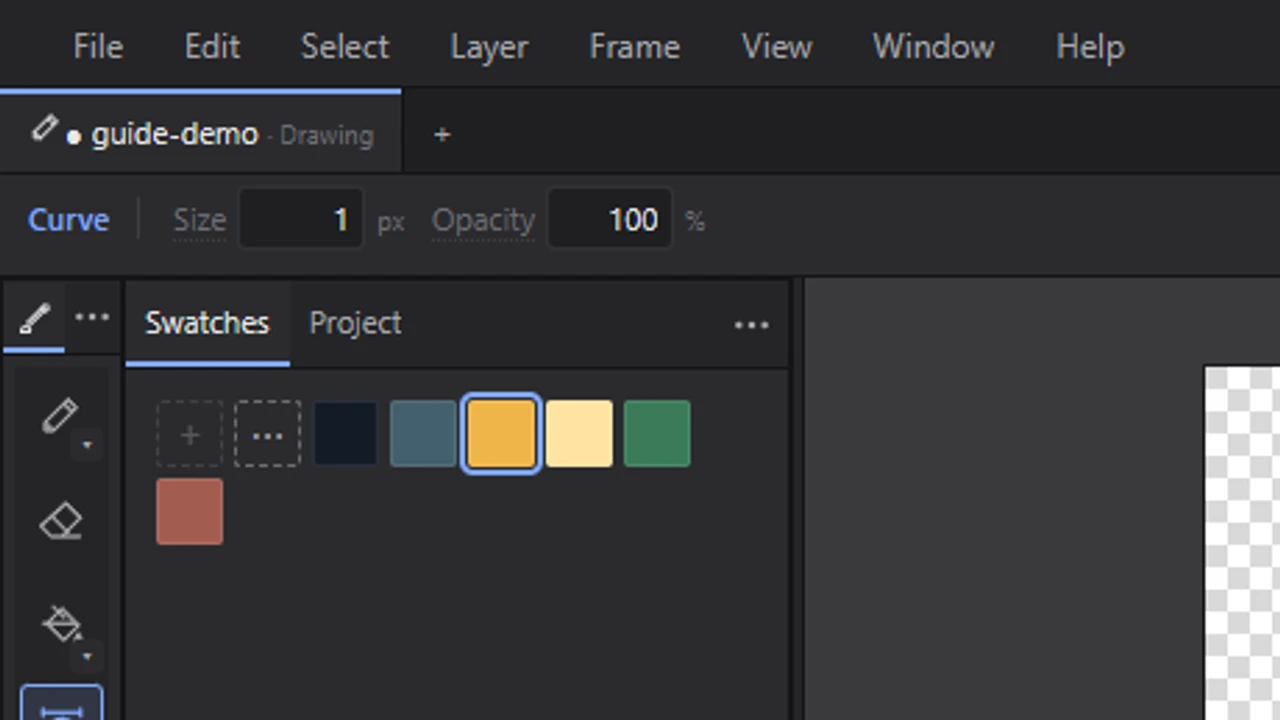
Construct a curved pixel line by placing its start, bend and end.
You will learn
- Choose Curve and find its options
- Place the three curve points
- Compare thin and thick marks
Choose Curve and find its options
Open the Lines arrow in the left toolbar and click Curve. Check its name in the options row. Choose a visible, unlocked layer. On a phone, select the tool and open its options sheet before drawing.
Check: Curve is active before you start the gesture.
Place the three curve points
Choose dark blue on an empty layer. Click once to place the start and release. Click a second point above the intended curve to control its bend. Click the final endpoint to finish. These are three separate clicks, not a freehand stroke. The middle point pulls the curve toward itself.
Check: An arc connects the first and last points.
Compare thin and thick marks
Start at Size 1 and make a mark. Undo, change Size to 7 and repeat from the same point. The number measures document pixels, so the mark grows without changing the canvas dimensions. Use the smaller size for precise edges.
Check: The second footprint is wider at the same zoom.
Compare solid and translucent paint
Make one test at 100% opacity. Undo, change to 30% and repeat from the same starting point. Inspect how the background shows through. Return to 100% for opaque artwork.
Check: The lower-opacity result lets the drawing or transparency underneath show through.
Compare an upward and downward bend
Make a first curve with its start and end low and its middle point above them. Make a second curve beside it with the start and end high and the middle point below. Inspect how moving the middle point changes the bend while the endpoints stay on the intended baseline.
Check: Two arcs bend in opposite directions.
Before you continue
Use Undo to compare the result with the original, then save when the change is useful. On a phone, open the tool options sheet when a control is not visible.
If something does not work
The result is not what I expected
If no final line appears after the first click, finish the remaining points. The tool is still waiting for its construction gesture.