
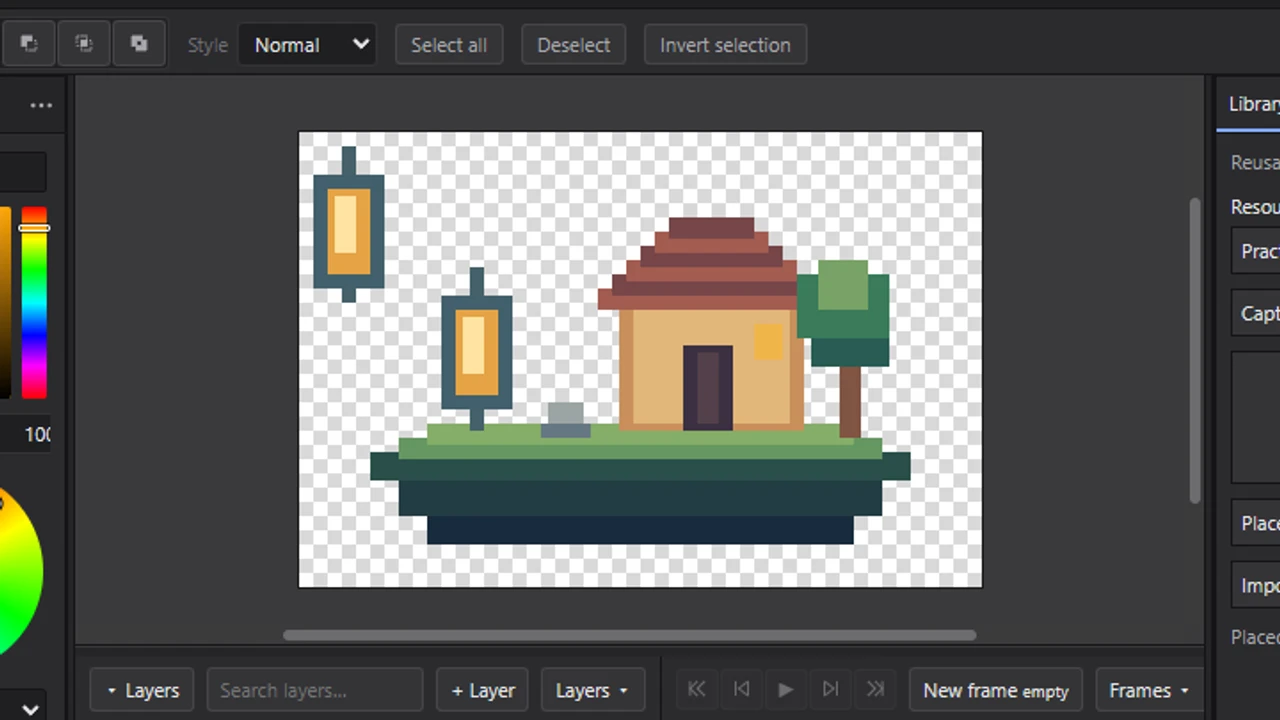
Keep small reusable pieces available without duplicating the whole working document.
You will learn
- Capture a useful fragment
- Import and place an asset collection
- Export the library for another project
Capture a useful fragment
Select the lantern and open Window → Library. Give it a clear resource name and Capture selection / canvas. Deselect before Place on new layer so a previous mask does not crop the placement. The placed copy is editable artwork, while the library keeps its reusable source.
Check: A named resource and an independent placed copy exist.
Import and place an asset collection
In Library choose Import library and load the downloadable practice-patterns JSON. Select Leaf tile, then Place on new layer. Imported resources remain available after placement. This is different from using an image as a reference, which should stay out of the artwork export.
Check: The imported piece becomes pixels on a new layer.
Export the library for another project
Export library downloads the reusable assets as JSON. Keep it alongside your source backups, then use Import library in another project. Deleting a library item does not erase copies already painted into a drawing.
Check: A library JSON downloads independently from the drawing.
If something does not work
Import library refuses my PNG
Import library reads a library JSON. To make an asset from artwork, select the intended region and Capture selection / canvas. For the ready-made practice resources, use the JSON attached to the Pattern guide. Import replaces the current collection, so export it first.