
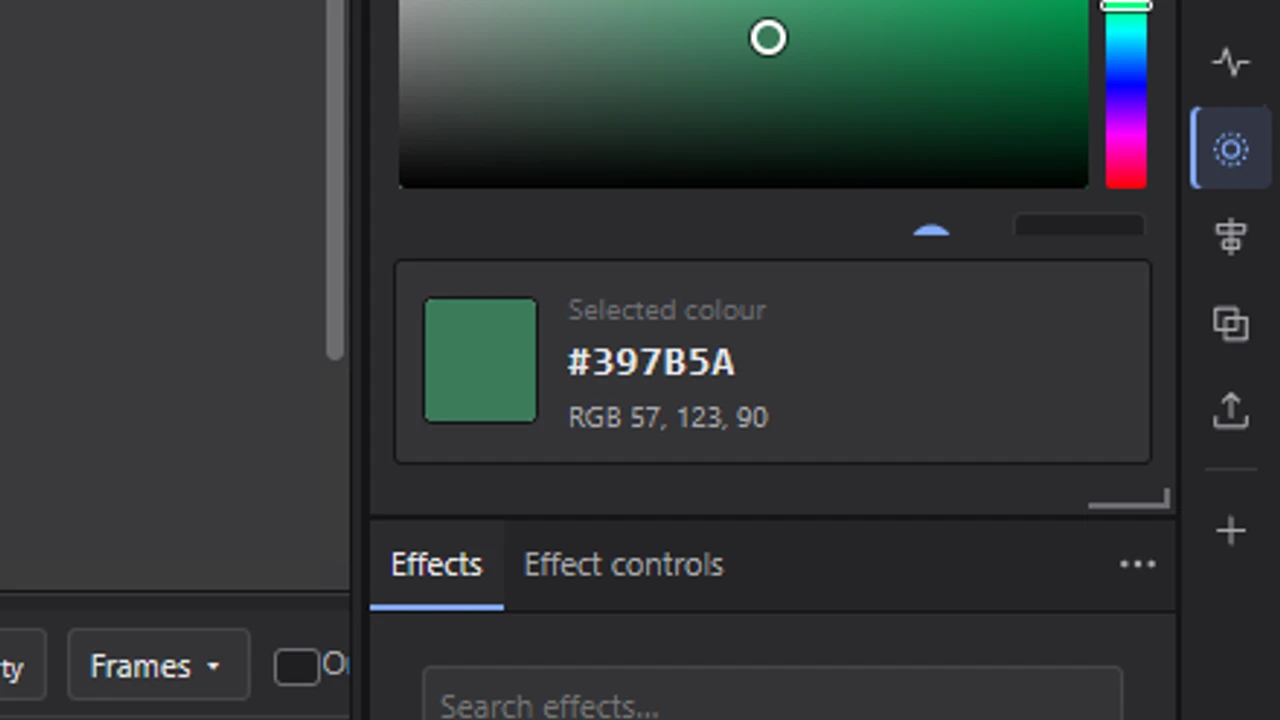
Choose exact colours, recognise the current swatch and keep a deliberate palette.
You will learn
- Read the selected colour
- Reuse before inventing
- Compare light and shadow
Read the selected colour
Open Colour and inspect the selected swatch and its value. The picker changes the active paint colour; it does not immediately recolour pixels already on the canvas. Check opacity when the same colour appears weaker in a stroke.
Check: Selected colour shows the intended hex value.
Reuse before inventing
Choose a project swatch or use Eyedropper on existing artwork. Reusing exact values avoids filling a small sprite with many almost-identical colours. Name or organise your palette when the project needs a stable colour language.
Check: A new stroke uses the sampled colour exactly.
Compare light and shadow
Choose a base, a lighter value and a darker one, then test them next to each other on a practice layer. Value separation makes a shape readable; hue and saturation can change with the material and lighting.
Check: Light, base and shadow remain distinguishable together.
Load a starting palette when available
Open Harmony, then Starting palettes. Choose a named preset or the project palette. This replaces the swatches without recolouring existing pixels. Save your current palette first using Save, import and edit palettes → Export JSON or Export .hex. The file importer accepts .hex and .gpl; the text editor accepts JSON or #RRGGBB entries.
Check: The swatches change while the existing artwork colours remain unchanged.
If something does not work
Loading a palette does not recolour the picture
This is expected: palettes provide paint swatches. Use Eyedropper to reuse a source colour or Replace colour for an intentional recolouring operation. Export the current palette before replacing its collection of swatches.