
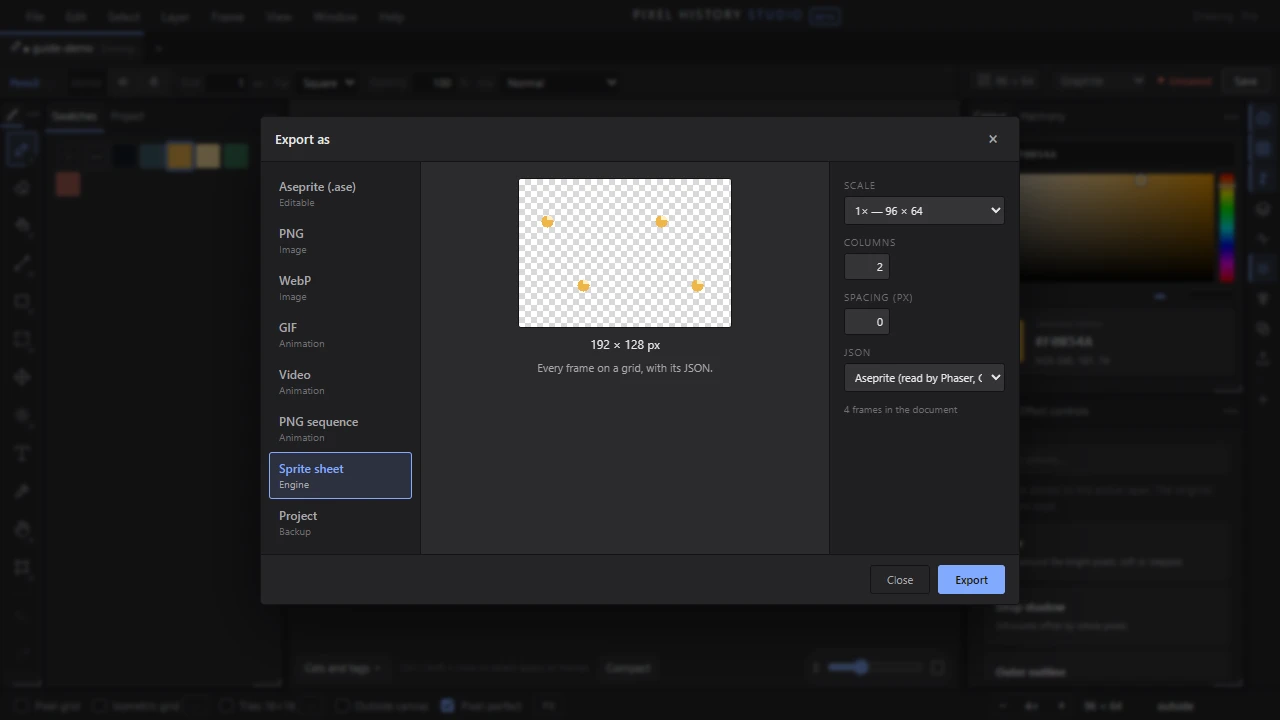
Arrange animation frames into a grid and keep the coordinates and durations needed by a game or another tool.
You will learn
- Choose the grid layout
- Configure gaps and JSON format
- Verify both downloaded files
Choose the grid layout
Open File → Export as → Sprite sheet with four frames of 96 × 64. Use Scale 1×. Two columns produce two rows; compare one and four columns in the preview. This packs the same poses differently without changing the animation source. Select the layout your destination expects.
Check: Four source frames occupy the intended rows and columns.
Configure gaps and JSON format
Start with Spacing between frames 0, then compare 2 px. Gaps enlarge the output and shift frame rectangles. Choose the JSON format expected by the receiving tool. Use the generated coordinates rather than estimating them from a screenshot, and keep the JSON from the same export as its PNG.
Check: The preview and metadata reflect the selected spacing.
Verify both downloaded files
Export with two columns, zero spacing and Scale 1×. Confirm that both PNG and JSON download. Four 96 × 64 frames occupy a 192 × 128 sheet. Inspect the PNG first and last pose and the JSON rectangles and durations. If only one file arrives, check the browser multiple-download permission before repeating the export.
Check: A matching PNG and valid JSON describe the same sheet.
If something does not work
Only the PNG downloaded
Check the browser multiple-download permission and export again. Keep the JSON from the same export settings as the image.