
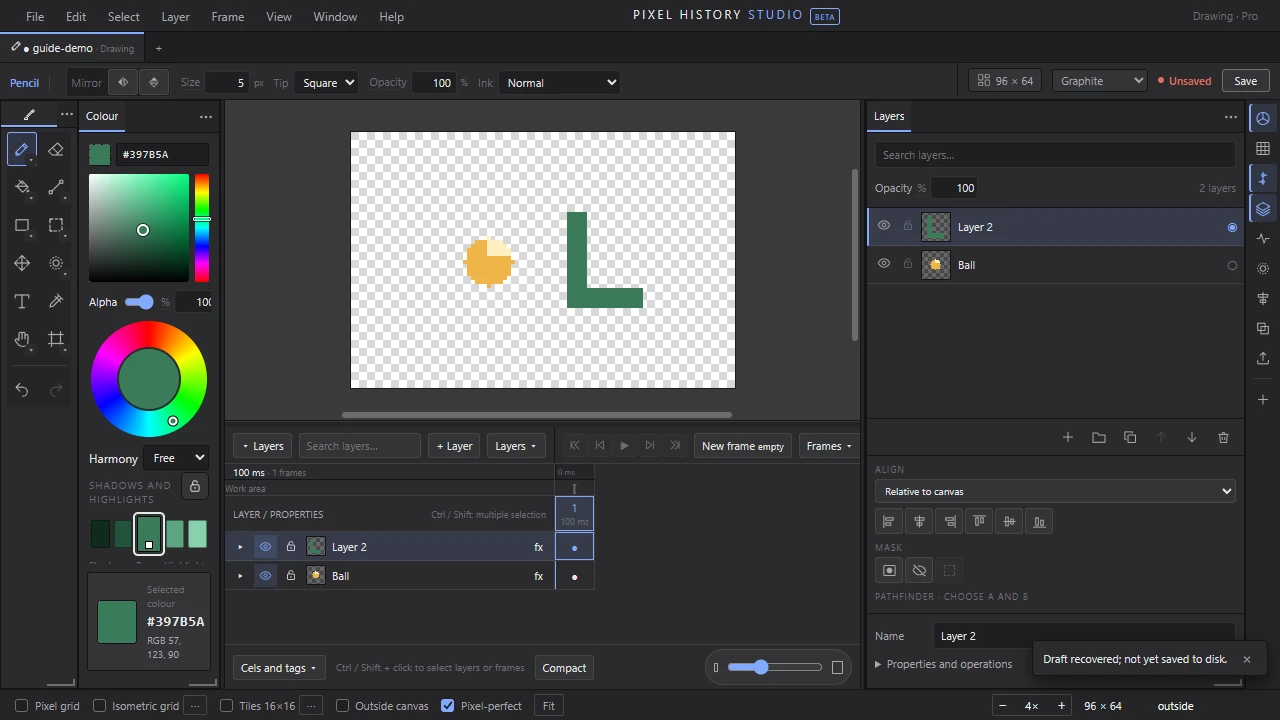
Separate the background, subject and effects so that each can be edited deliberately.
You will learn
- Choose where new paint belongs
- Compare visibility and opacity
- Order layers and duplicate a source
Choose where new paint belongs
Create a new layer above Ball and paint a green stroke. The ball and stroke remain separate. Check the active layer name before painting and give layers a role such as background, character or light. A new layer in an animated document belongs to a frame and track, so also check the active frame.
Check: The new stroke occupies a separate layer.
Compare visibility and opacity
Hide Detail using its eye: only the green rectangle disappears. Show it again and set Layer opacity to 40%, then restore 100%. Visibility hides a layer completely; opacity fades its entire result. Neither operation erases its source pixels. Lock protects editing and is separate from visibility.
Check: The same layer can be hidden or faded without repainting.
Order layers and duplicate a source
Lower Detail behind the gold shape and raise it again. The stack controls front and back, not the position of source pixels. Duplicate the active layer before a destructive merge or effect application. Keep only the intended copy visible when comparing the result.
Check: Stack order changes overlap and a duplicate preserves a source.
Organise related layers in a group
Put Detail and Ball in the same Scene group using Layer group. Collapse the group to tidy the list. Grouping organises related layers; it does not flatten them into one drawing. Use group visibility and lock when you need those layers to behave together.
Check: The group collapses while its layers remain independent.
If something does not work
Paint lands on the wrong object
Confirm the selected layer name, frame and mask target. Temporarily hide the layer to identify its contents. A visible top layer is not necessarily active, and an active mask receives mask paint instead of normal colour paint.