
Add a border around existing artwork without tracing the whole silhouette manually.
You will learn
- Choose Outline
- Make the first action and inspect its result
- Compare a one- and three-pixel outline
Choose Outline
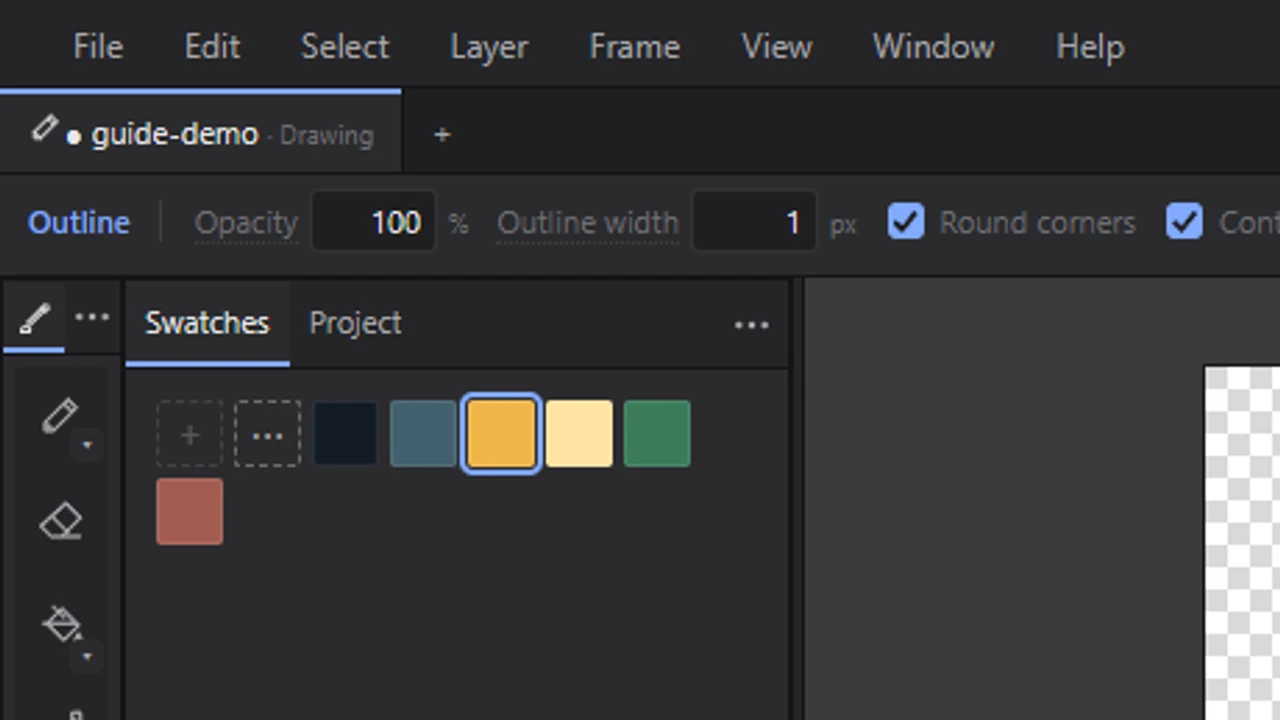
Find Retouch in the left toolbar. Open its arrow if it has one, then click Outline. Check the tool name and its options before touching the canvas. Work on a visible, unlocked layer. On a phone, open the tool options sheet.
Check: Outline is active.
Make the first action and inspect its result
Start with a filled gold rectangle on a transparent layer. Choose dark blue, Outline width 1 and Outside placement. Leave Contiguous enabled, then click inside the gold block once. Release and move the pointer away: a one-pixel blue border surrounds this connected object. Clicking an empty area does not choose an object to outline.
Check: Move the pointer away and compare the result with the starting image.
Compare a one- and three-pixel outline
Choose Outline width 1 and click the object. Undo, use 3 and repeat. Thick outlines can close tiny gaps, so inspect handles and holes after adding the border.
Check: The second border occupies more pixels around the silhouette.
Place the border outside, inside or both
Compare Outside, Inside and Both, undoing between clicks. An outside border expands the silhouette; an inside border uses its interior pixels. Choose the placement that keeps small details readable.
Check: The border position changes relative to the original edge.
Compare square and rounded corners
At a visible outline width, toggle Round corners and compare the outer corners. It changes the pixel outline, so inspect the result rather than expecting a smooth vector curve.
Check: The corner pixels differ between the two versions.
Outline one object or every object
Prepare two disconnected shapes. Enable Contiguous and click one shape to outline only that connected object. Undo, disable it and repeat to outline the layer contents. This is different from choosing inside or outside placement.
Check: The disconnected object receives a border only when the scope includes it.
Practise with a controlled second example
Use a lantern isolated on a transparent layer, without any connected ground pixels. Choose a dark outline colour, width 1, Outside and Contiguous. Click the lantern and move away to inspect the handle and the bottom corners. Ctrl+Z removes the border; Ctrl+Shift+Z restores it. If the lantern touches another painted object, Contiguous treats them as one connected shape.
Check: Inspect the finished result with the pointer away.
Before you continue
Use Undo to compare the result with the original, then save when the change is useful. On a phone, open the tool options sheet when a control is not visible.
If something does not work
The result is not what I expected
If nothing is outlined, click an opaque pixel of the object and check the active layer. This differs from the filled Contour drawing tool.