
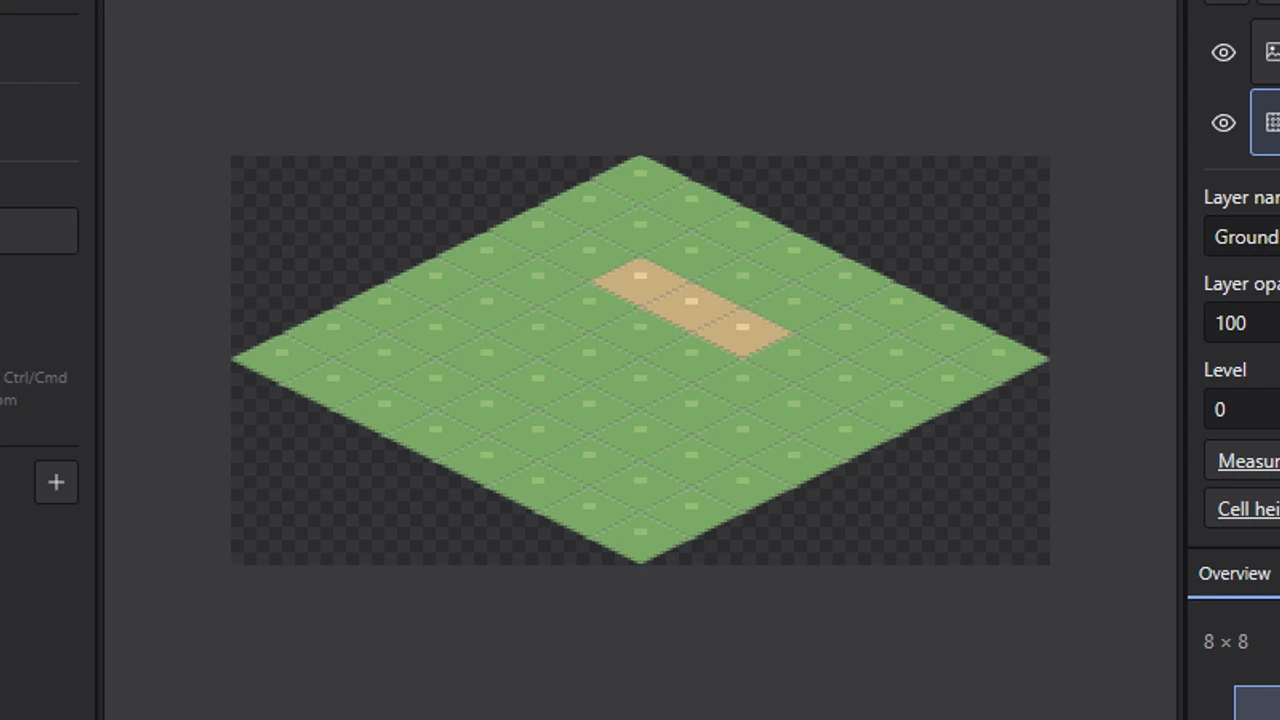
Stamp, line, rectangle, ellipse, fill, erase, pick and random brush on a small isometric floor.
You will learn
- Stamp individual cells and strokes
- Tile line
- Rectangle outline and fill
Stamp individual cells and strokes
Open the small map and select Ground, a pattern layer. In Patterns choose Tile 2 from Garden floor, then Stamp. Click three adjacent cells and drag to extend the path. One gesture is one undoable stroke. The active tile and active layer are separate choices: check both before painting.
Check: A short path appears on the intended layer.
Tile line
Keep Tile 2 selected and choose Tile line. Drag from a start cell to an end cell, then release. The line is made of complete map cells rather than screen pixels. On an isometric map the same cell-space direction appears slanted on screen. Undo once to remove the entire line.
Check: The path follows a continuous line of cells.
Rectangle outline and fill
Choose Tile rectangle and disable Filled shape. Drag across several columns and rows. The rectangular cell region appears as an isometric diamond on screen. Undo, enable Filled shape and repeat the same gesture. Compare the empty centre with the filled result.
Check: The filled version paints the interior cells as well as its border.
Ellipse outline and fill
Choose Tile ellipse. First draw with Filled shape off, then undo and repeat with it on. The ellipse is evaluated in columns and rows, so its projected silhouette is not an ordinary screen-space circle. Use a large enough region to distinguish its stepped edge.
Check: The ellipse has a different cell boundary from the rectangle.
Fill connected cells
Choose Fill and click a green cell on Ground. The connected region using that ground tile is replaced with the selected path tile. On this simple floor the whole connected ground changes. Fill works on the active pattern layer, not every visible layer. Undo before adding new details.
Check: The connected ground changes together and Undo restores it.
Erase cells
Choose Erase and drag across a few ground cells. The tool removes tile references from the active layer. A checkerboard gap means no tile there; another visible ground layer underneath can hide that gap. Undo to restore the floor without importing its tileset again.
Check: The erased cells become empty and are recoverable with Undo.
Pick an existing tile
Choose Pick from map and click the original green floor. The active brush changes to the picked piece without modifying the artwork. Return to Stamp to continue using it. Picking is useful when a map contains several tilesets and you do not want to search their thumbnails manually.
Check: Picking changes the brush while the map remains intact.
Random brush with selected pieces
Ctrl-click the two floor thumbnails to select both and enable Random brush, the dice button. Stamp a strip of cells. Each cell uses one of the chosen pieces. The dice also works with fills and shapes. Disable it when you need an exact repeated pattern; randomness does not automatically make compatible edge transitions.
Check: The strip contains variation from the selected pieces.
If something does not work
A tool does not paint
Select a pattern layer that is visible and unlocked, choose at least one tile in Patterns and make sure you are using a map editing tool. An object layer offers independent object placement instead of cell fills and shapes.