
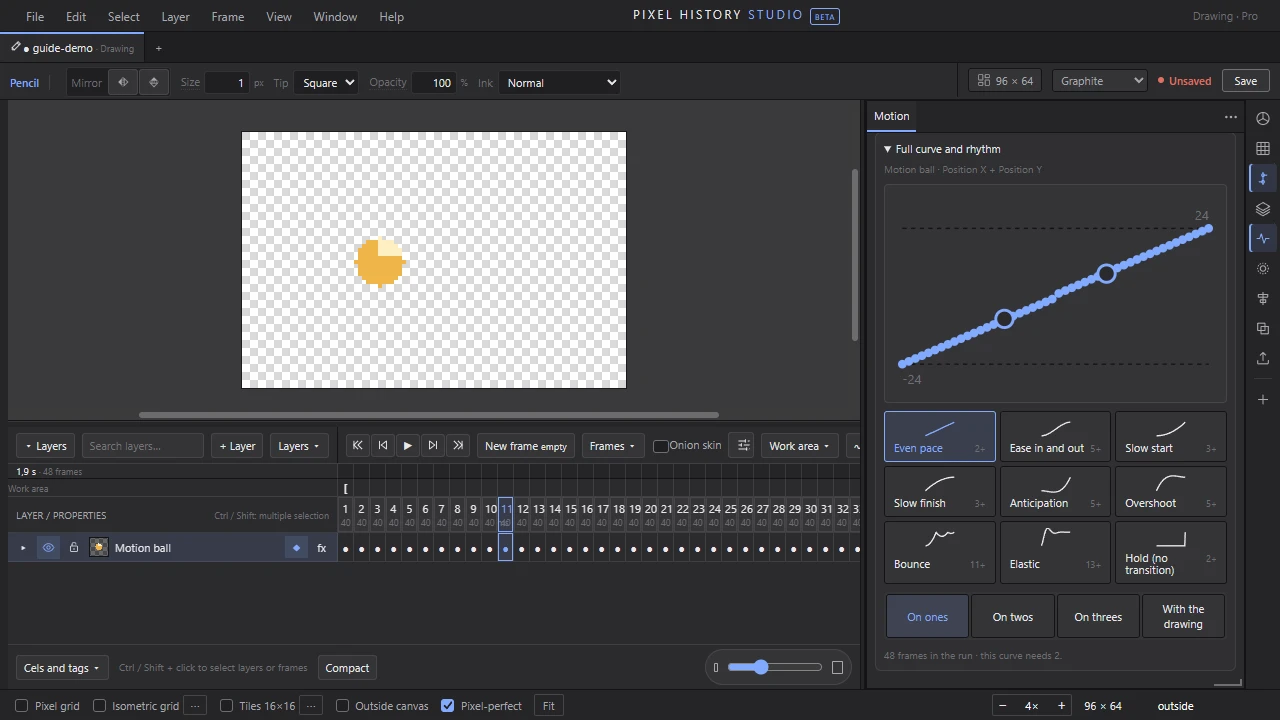
Compare four timing curves on the same horizontal journey, using identical keys and frame durations.
You will learn
- Even pace
- Ease in and out
- Slow start
Even pace
Prepare Position X keys at −24 and 24 px, separated by 48 frames of 40 ms. Select Frame 1 and open Motion → Full curve and rhythm. Choose Even pace. Play the whole run: equal time steps produce nearly equal pixel distances, allowing for integer rounding. A straight horizontal path can still have a curved timing graph.
Check: The spacing is nearly uniform across the run.
Ease in and out
Keep the same two keys. In Curve shape choose Ease in and out. Play without changing frame durations. The ball moves little near both keys and farther between middle frames. The destination and total duration stay the same. Use this comparison before adjusting the Arrival and Departure sliders independently.
Check: The ball starts and finishes slowly.
Slow start
Choose Slow start on the same run. Inspect the first few frames, then play. The ball spends more frames near its starting position and reaches the destination moving faster. This is useful for a launch or fall, but a looping preview jumps back to the first key after arrival.
Check: The spacing grows towards the final key.
Slow finish
Choose Slow finish, keeping both key values and the 40 ms frames. The ball moves quickly at first and slows down near the destination. Compare it with Slow start: the journey and duration are identical, but the distances between poses are distributed in the opposite way.
Check: The spacing shrinks near the destination.
If something does not work
My curve looks like a straight line
Use enough frames between the two keys. Extra keys inside the run split it into shorter runs. Select the intended property and inspect the frame spacing, not only the graph.