
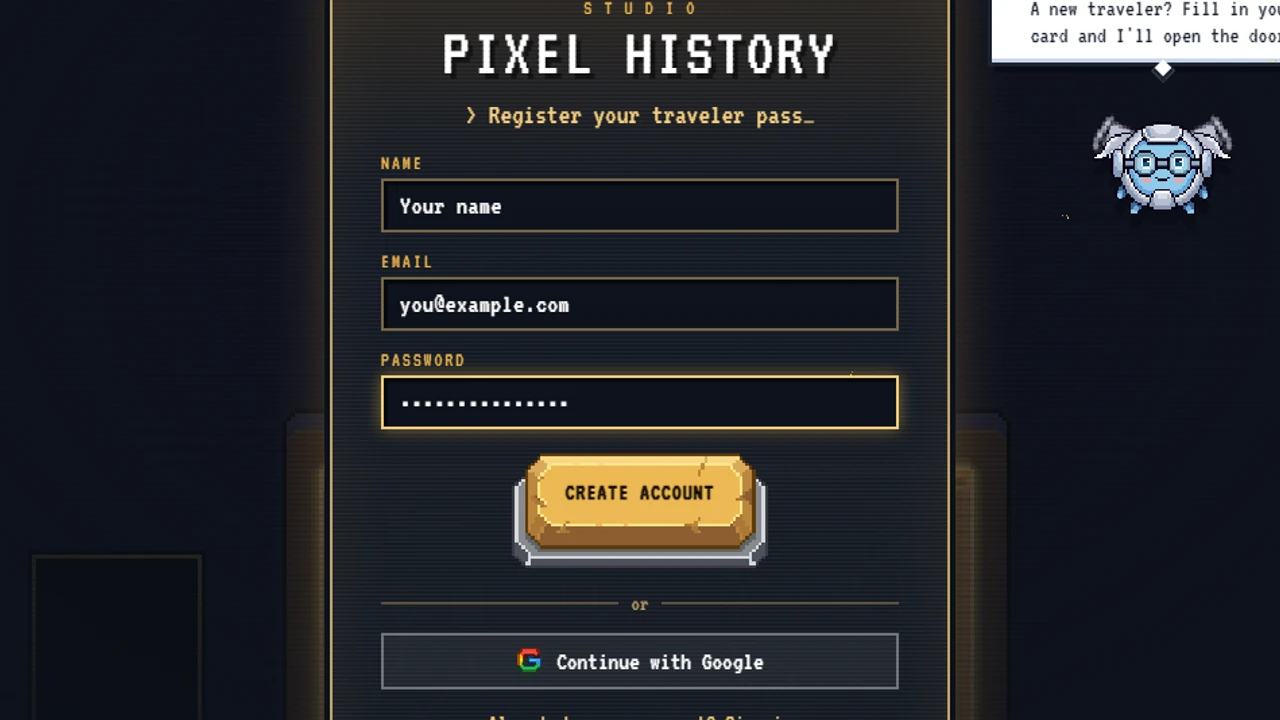
Set up access to the platform and know which details belong to your private account or public profile.
You will learn
- Open the sign-in window
- Choose an available access method
- Check email status
Open the sign-in window
From public content, choose a private section such as Projects or Profile. The access window opens over the page. Choose Create account to reveal the registration fields; existing users can return to Sign in without leaving the content.
Check: The registration fields appear without losing the public article.
Choose an available access method
Use an access method shown in the window. For email registration, enter your name, email and a password that meets the form requirements. Google access is available when configured on the platform. Do not share your password in a public biography or project chat.
Check: The form shows the next action or a specific validation message.
Check email status
Open Profile → Configuration → Email after entering. The page shows whether the address is verified and the available verification action. Check spam if an expected message is missing and request another link through the account controls when available.
Check: Email settings show the address and its verification state.
Separate your identity from your access
Set your public username, biography and social links in Profile settings. Your login email is managed under Email. Creating an account does not publish artwork or copy a local project into cloud storage.
Check: Public username and private login address are separate fields.
If something does not work
The expected verification email is missing
Check the address in Email settings and inspect spam. Use the resend action offered by the account. An unverified email is a different state from a rejected password or an unavailable external sign-in method; follow the specific message shown.