
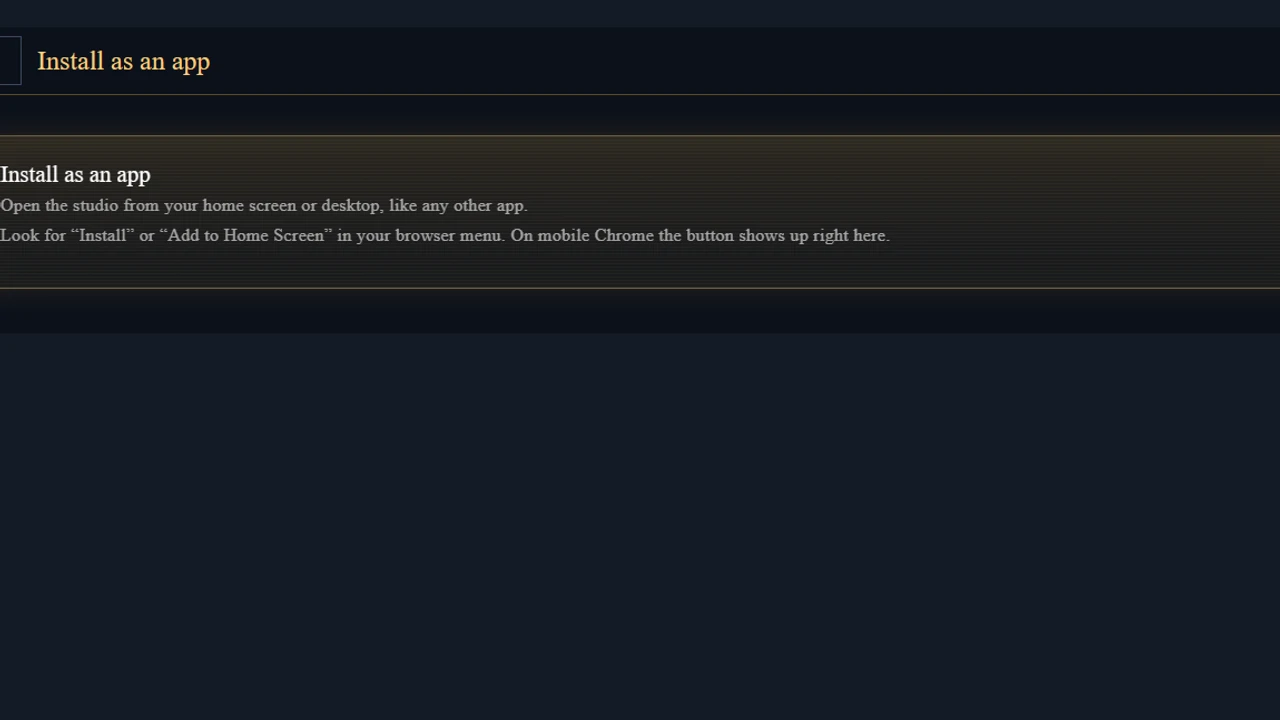
Add the web app to a supported browser or home screen without looking for an unrelated installer.
You will learn
- Open the installation page
- Install on desktop or Android when offered
- Add it to an iPhone or iPad home screen
Open the installation page
Go to Profile → Configuration → Install as app. Read the instructions shown for the device you are using. Installation support depends on the browser and operating system; the Studio still opens in a normal browser tab.
Check: The installation instructions match the current device.
Install on desktop or Android when offered
In a supporting browser, use the installation button or the browser’s install option and confirm its dialog. The installed window opens the same web app. It is not a separate native editor with a different set of files.
Check: If installation is supported, the new app window opens the Studio.
Add it to an iPhone or iPad home screen
Use Safari’s Share menu and Add to Home Screen when the option is available. Choose a recognisable name. Open the new icon and check that the platform loads correctly before closing your existing session.
Check: When offered, the home-screen icon opens the same platform.
Keep backups independent of installation
Installing does not upload local projects or guarantee that account, storage and sharing features work offline. Back up projects before clearing browser data, switching profiles or removing the app.
Check: An editable backup exists outside this browser profile.
If something does not work
There is no install button
Use the browser instructions on the installation page. The browser may not support installation, the app may already be installed, or the current environment may not offer the prompt. You can continue in the browser.