
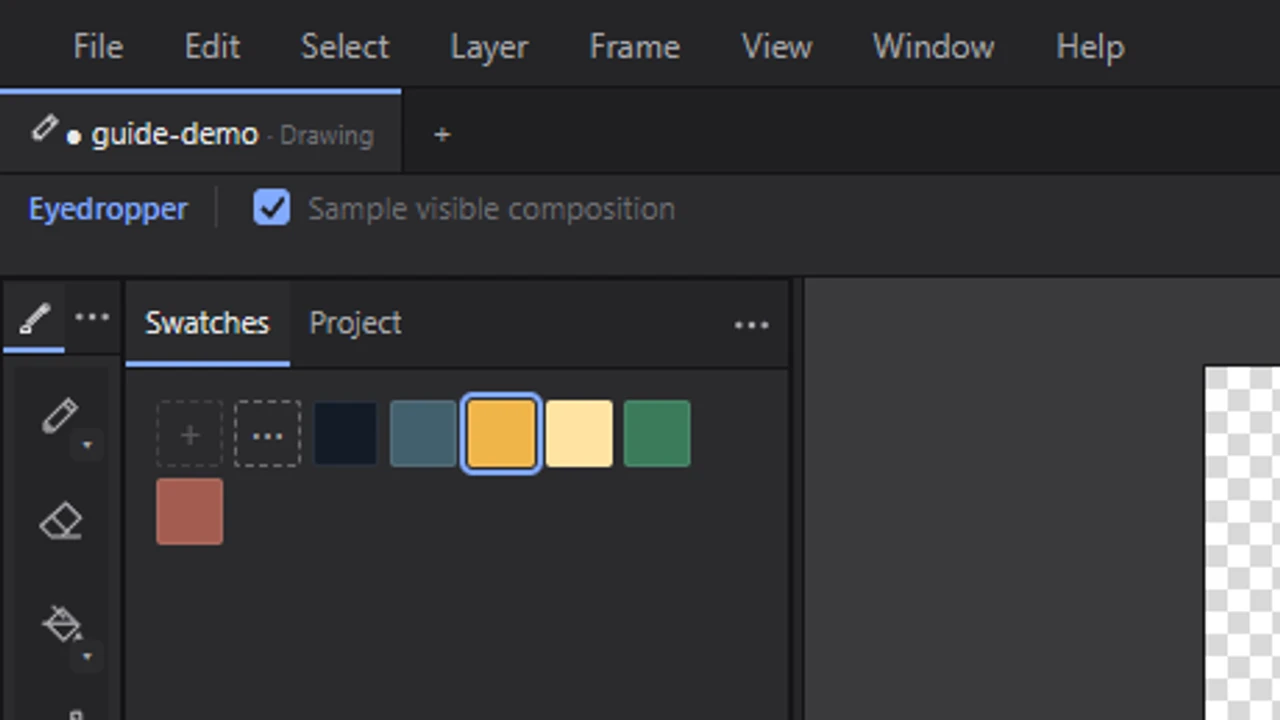
Reuse an existing colour exactly instead of approximating it in the picker.
You will learn
- Choose Eyedropper
- Make the first action and inspect its result
- Compare the active layer and visible composition
Choose Eyedropper
Find Eyedropper in the left toolbar. Open its arrow if it has one, then click Eyedropper. Check the tool name and its options before touching the canvas. Work on a visible, unlocked layer. On a phone, open the tool options sheet.
Check: Eyedropper is active.
Make the first action and inspect its result
Start with the green block on the active layer. Choose Eyedropper and click an opaque green pixel once. This does not paint. Look at Selected colour below the colour picker: the swatch and hex value now show #397B5A.
Check: Move the pointer away and compare the result with the starting image.
Compare the active layer and visible composition
Place a 50%-opacity yellow stroke on a new layer above the green block. With Sample visible composition off, click their overlap: Selected colour reads the upper layer’s yellow. Enable the option and sample the same point: it reads the visible blend of yellow and green. Inspect the swatch and hex after each click.
Check: The same point gives a different colour when the sampling source changes.
Practise with a controlled second example
Sample the green block, then choose Pencil and Size 5 without changing the colour. Draw a small L in the empty area to its right. The new mark uses exactly the sampled green rather than an approximation.
Check: Inspect the finished result with the pointer away.
Before you continue
Use Undo to compare the result with the original, then save when the change is useful. On a phone, open the tool options sheet when a control is not visible.
If something does not work
The result is not what I expected
A semitransparent pixel or a composed colour may differ from an opaque palette swatch. Check the sampling source and alpha rather than adding near-duplicate colours.