
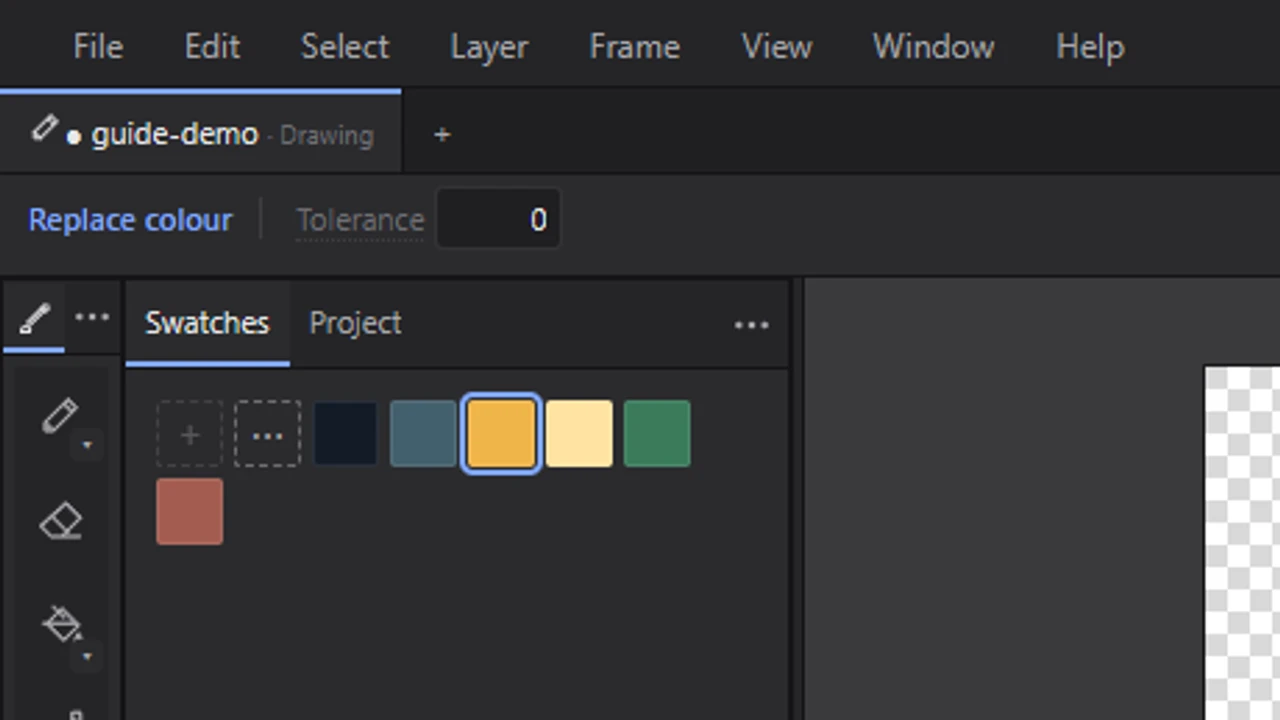
Replace matching colours across the active layer or selection.
You will learn
- Choose Replace colour
- Make the first action and inspect its result
- Compare exact matches with nearby shades
Choose Replace colour
Find Retouch in the left toolbar. Open its arrow if it has one, then click Replace colour. Check the tool name and its options before touching the canvas. Work on a visible, unlocked layer. On a phone, open the tool options sheet.
Check: Replace colour is active.
Make the first action and inspect its result
Prepare two separate gold blocks and a neighbouring, slightly different gold shade. Choose green as the active replacement and Tolerance 0. Click the left gold block once. All exact matches on the active layer change, including the separate block on the right. The nearby different shade remains.
Check: Move the pointer away and compare the result with the starting image.
Compare exact matches with nearby shades
Choose green as the replacement. At Tolerance 0, click the original left gold: both separate exact matches change. Undo. At Tolerance 70, click the same source: the neighbouring gold shade also changes. The operation covers the active layer or active selection; it is not restricted to the distance you drag.
Check: Higher tolerance includes the nearby shade as well.
Practise with a controlled second example
First use rectangular Selection to enclose the two neighbouring shades on the left. Keep the separate block outside. Choose Replace colour, green and Tolerance 0, then click the original left gold. Only matching pixels inside the selection change. Ctrl+D removes the selection.
Check: Inspect the finished result with the pointer away.
Before you continue
Use Undo to compare the result with the original, then save when the change is useful. On a phone, open the tool options sheet when a control is not visible.
If something does not work
The result is not what I expected
The first touched pixel matters. Undo and restart on the intended source if the wrong colour changes.