
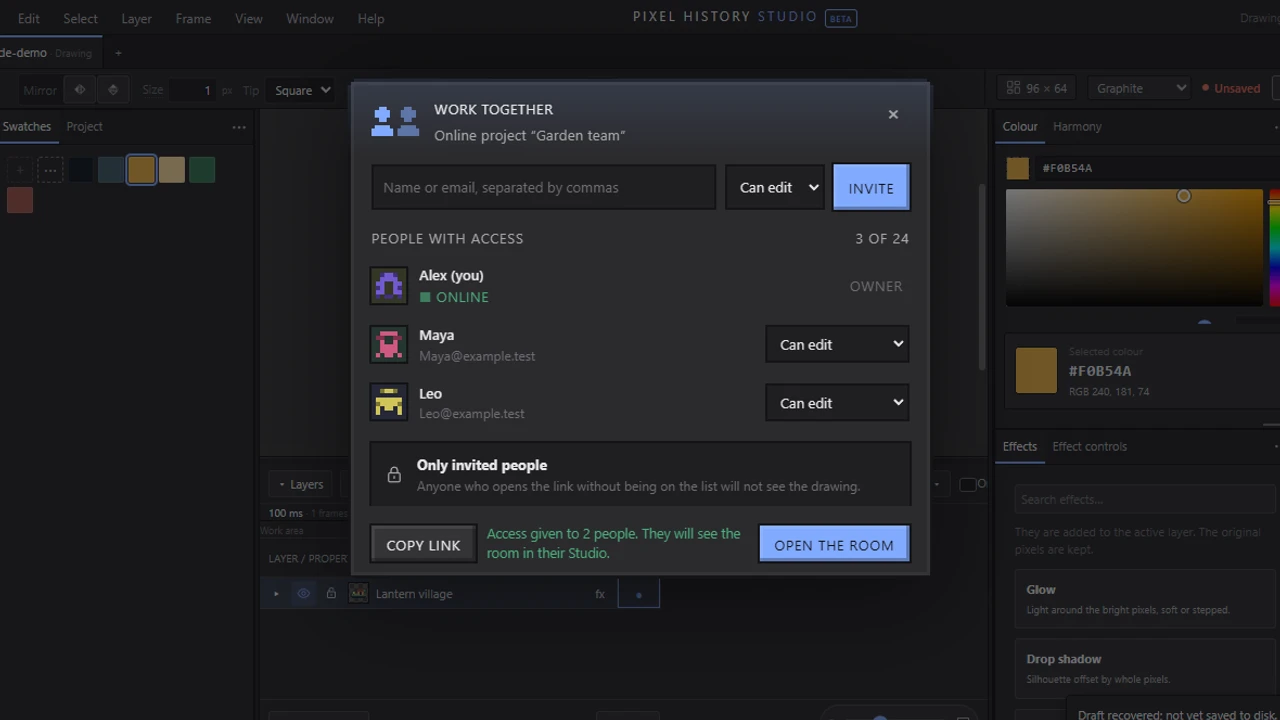
Use an online project with deliberate membership and editing access rather than assuming local folders are shared.
You will learn
- Create the online copy and invite two people
- Distinguish view and edit access
- Continue in the shared project
Create the online copy and invite two people
Save a local backup, then open File → Share project online. Name the room or online project, add the two existing accounts by name or email and choose Can edit. Press Share. Check People with access and Open the room. An online copy does not automatically keep a separate local folder in sync.
Check: Both invited accounts appear with the intended access.
Distinguish view and edit access
As owner open the people list. Change Maya from Can edit to Can view. A viewer can inspect the project but does not receive painting permission. Sending the room link alone does not invite an unlisted account. Check each person before a session, and grant editing only to those who should change the source.
Check: Maya is a viewer while the other artist remains an editor.
Continue in the shared project
Each participant opens the authorised online room with their own account. Continue to Work in parts with two or three artists to see separate layers, separate documents and undo. Work together (same project) is a different networked-folder workflow: it keeps a local project per person and sends saved changes directly. Choose the workflow deliberately.
Check: The team opens the same intended working project.
If something does not work
My collaborator cannot see a local folder
A local folder permission belongs to the local browser. Share the intended online project through its controls and check membership, viewing/editing permissions and connection status. Avoid editing divergent local and online copies as if they were one session.