
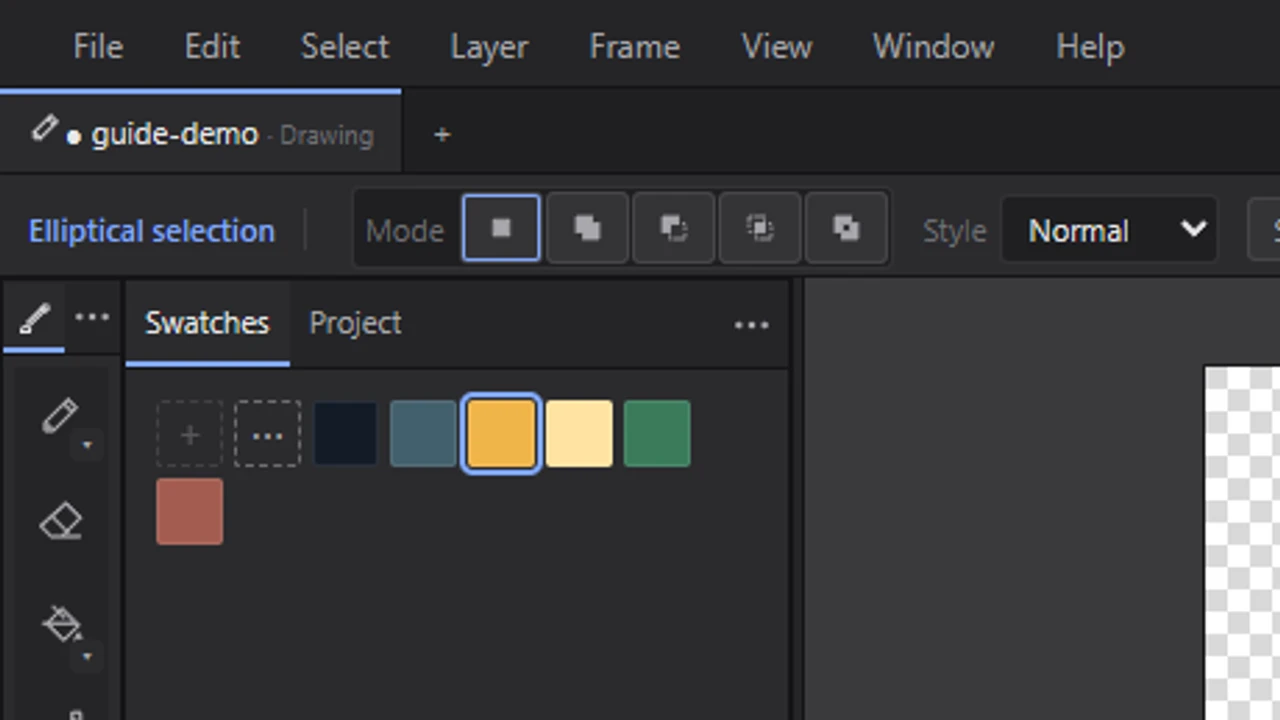
Use an ellipse-shaped mask for local lighting, curved crops and rounded subjects.
You will learn
- Find Elliptical selection
- Mark a region, then test its boundary
- Compare four ways to combine regions
Find Elliptical selection
Open the Selection arrow in the left toolbar and click Elliptical selection. Check the name in the options row. The selection mode buttons control how your next region combines with an existing mask. On a phone, open the tool options sheet.
Check: Elliptical selection is selected before marking a region.
Mark a region, then test its boundary
Press above-left and drag down-right. The oval fits inside that bounding rectangle; release to finish. Inspect the dotted boundary: no new paint exists yet. Choose Pencil, green and Size 9. Drag horizontally across both edges. The selected area accepts the stroke; the rest is protected.
Check: The green mark is clipped to the selection shape.
Compare four ways to combine regions
Start each comparison with the same first mask. Mark a second, overlapping region using this tool. Choose Add, Subtract, Intersect or Exclude overlap before marking that second region. Paint the resulting mask green so its boundary is visible. Undo the paint, rebuild the first mask and compare the next mode. Ctrl+D removes the final selection.
Check: The green result shows exactly which region each mode keeps.
Place an exact-size selection
Choose Fixed size in Selection style. Enter a width of 12 and a height of 20, then drag to position the measured mask. This is useful for equal-sized sprites. Switch back to Normal for a selection whose size follows your drag.
Check: The fixed mask keeps its dimensions while you place it.
Cross the boundary without painting outside
Press above-left and drag down-right. The oval fits inside that bounding rectangle; release to finish. Keep the selection active. Choose Pencil, green and Size 9. Begin the stroke outside one edge, cross the selected area and finish outside the opposite edge. Only the inside receives paint. Press Ctrl+D; the boundary disappears and the clipped stroke remains.
Check: The outside remains untouched after deselecting.
Make a clipped stripe and a thinner highlight
Press above-left and drag down-right. The oval fits inside that bounding rectangle; release to finish. Choose Pencil, green and Size 9. Draw a horizontal stripe crossing the whole region. Change to pale yellow and Size 3, then make a second pass just above the first. Keep the mask active for both passes. Ctrl+D reveals the finished stripes without the dotted boundary.
Check: Both strokes stop at the same selected boundary.
Before you continue
Use Undo to compare the result with the original, then save when the change is useful. On a phone, open the tool options sheet when a control is not visible.
If something does not work
The result is not what I expected
The visible bounding box is not the whole selected mask. Its corner pixels lie outside the ellipse.