
Remove pixels from the active layer to reveal transparency or the artwork underneath.
You will learn
- Erase the middle of a simple stroke
- Now erase part of an illustration
- Compare a 1 px cut with an 8 px cut
Erase the middle of a simple stroke
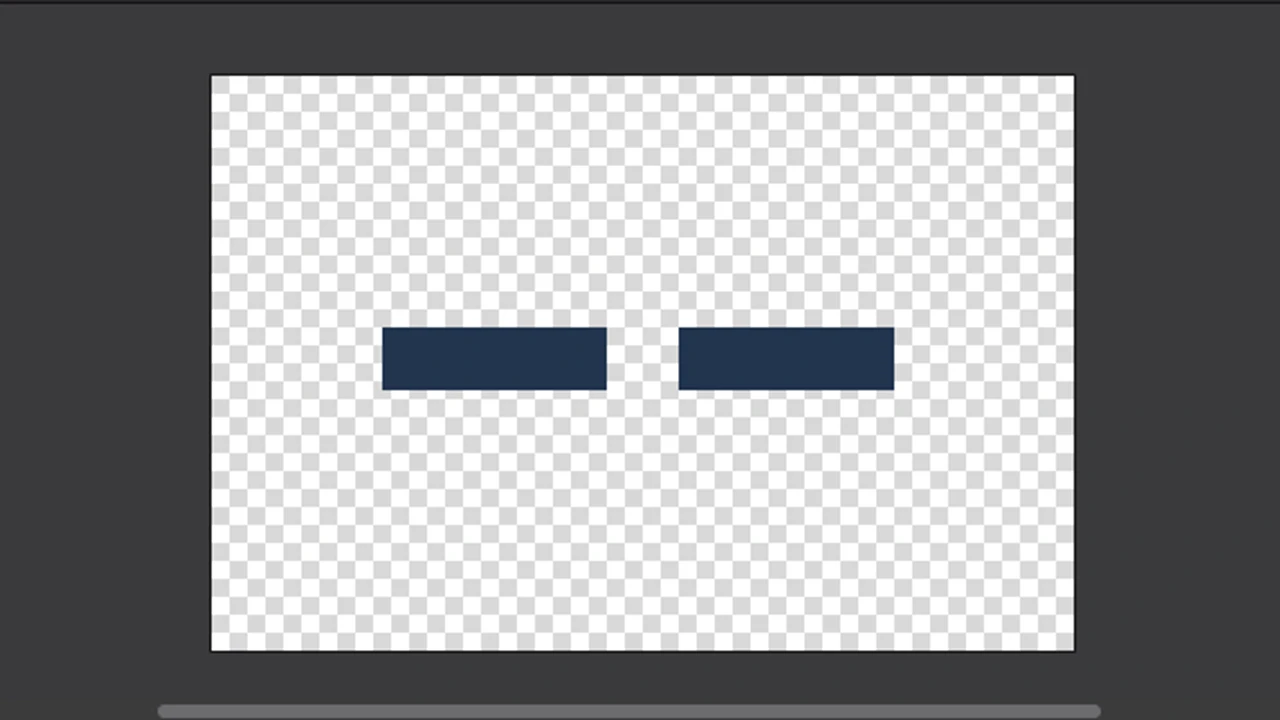
Start with a thick line on an otherwise empty layer, as in the video. Click Eraser in the left toolbar, or press E. Set Size to 8. Press above the middle of the line, drag down across it and release. Move the pointer away: the gap shows the checkerboard, which means transparency. Only the active layer is affected.
Check: The line is separated into two pieces by a visible transparent gap.
Now erase part of an illustration
The second example uses the house. Select the layer containing the house, choose Eraser and set Size to 8. Drag a short vertical pass through the wall, away from the roof. Release and move the pointer off the house to inspect the cut. If another visible layer is underneath, its artwork appears instead of the checkerboard.
Check: A strip of the wall disappears while the rest of the scene stays intact.
Compare a 1 px cut with an 8 px cut
Use two identical thick lines. At Size 1, drag across the middle of the upper line. Then set Size to 8 and repeat on the lower line. Move the pointer away after each pass. Size controls the width of the erased area in artwork pixels; zoom only enlarges your view.
Check: The upper gap is one pixel wide; the lower gap is visibly wider.
Compare square and round holes side by side
On a filled rectangle, set Size to 12. Choose Square and click once on its left half. Release and move away. Choose Round and click on its right half. Compare both holes together: one has square corners and the other a stepped circular edge. At size 1 the two tips look identical.
Check: Both holes remain visible together, without the pointer covering either one.
Compare transparency with background paint
On a filled rectangle, set Size to 12. Leave Erase with background colour unchecked and click on the left: a transparent hole appears. Enable the option, choose a pale yellow Background colour and click on the right. The yellow patch is paint; the checkerboard is an empty part of the layer. They export differently.
Check: A checkerboard hole and a yellow painted patch are visible side by side.
Recover a stroke with Undo
Erase across the middle of a thick line, release and inspect the gap. Press Ctrl+Z once. The whole last erased pass returns, restoring the continuous line. Undo acts on the completed gesture; several small gestures give you more precise points to return to.
Check: The gap disappears and the original continuous line returns.
Before you continue
Use Undo to compare the result with the original, then save when the change is useful. On a phone, open the tool options sheet when a control is not visible.
If something does not work
The result is not what I expected
An image on another visible layer can remain after erasing. Select the layer that actually contains those pixels rather than repeatedly erasing an empty layer.