
Turn a selected fragment into a stamp for repeated leaves, stones or decorative marks.
You will learn
- Start with a small, recognisable drawing
- Select the drawing you want to repeat
- Turn that selection into a brush
Start with a small, recognisable drawing
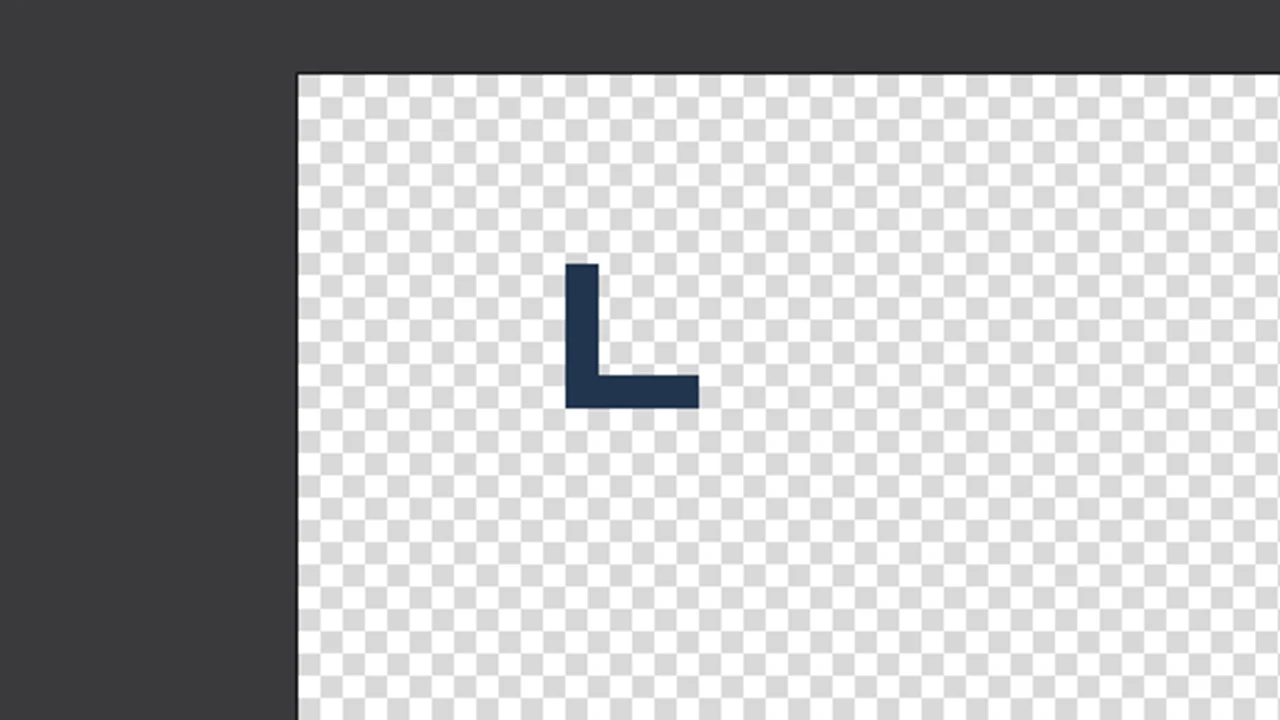
A captured brush repeats existing pixels; choosing the tool alone does not create them. Start on an empty layer and draw a small blue L, as in the video. This simple shape makes it easy to recognise the source and its copies. Leave transparent space around the drawing. You can later use the same steps for a leaf or a stone.
Check: One small blue L exists before a brush is captured.
Select the drawing you want to repeat
Open the Selection arrow in the left toolbar and choose rectangular Selection. Press just above and to the left of the L, drag to its lower right and release. The moving dotted rectangle must enclose the whole L and a small transparent margin. A selection marks a region; it has not copied or stamped anything yet.
Check: The selection outline surrounds the entire L; no second L appears yet.
Turn that selection into a brush
Keep the L selected. Open Edit in the top menu and click Capture brush, or press Ctrl+B. The editor reads the selected pixels from the active layer and activates Custom brush. Nothing has been stamped yet. Press Ctrl+D to remove the selection before placing copies elsewhere; otherwise the selection would restrict where you can paint.
Check: The options row says Custom brush and the old selection has been removed.
Click once for each copy
With the brush captured and no selection active, click an empty area to the right of the source L. Release and move away: a second L remains. Click farther right for another copy. A stamp uses the captured drawing and its colours, rather than making a solid square of the active colour. Transparent parts leave the destination visible.
Check: One original L and two separate stamped copies remain on the canvas.
Compare opaque and translucent copies
Capture the L and remove the selection. Set Brush opacity to 100% and stamp one copy. Set it to 35% and stamp another beside it. The second copy keeps the same shape and colours but is more transparent. Move the pointer away so the preview does not look like an extra copy.
Check: The second stamp is visibly more transparent than the first.
Put repeated stamps on a separate layer
Capture the L, press Ctrl+D, then open Layer → New layer. Custom brush remains available. Stamp two copies on the new layer. Undo once to remove only the last stamp, then redo it with Ctrl+Shift+Z. The source remains on its original layer. Keeping decoration separate makes later corrections easier.
Check: Undo removes one stamp while the source and the other stamp remain.
Before you continue
Use Undo to compare the result with the original, then save when the change is useful. On a phone, open the tool options sheet when a control is not visible.
If something does not work
The result is not what I expected
Choosing the tool alone does not create a brush. If it has nothing to stamp, make a nonempty selection and capture it again.