
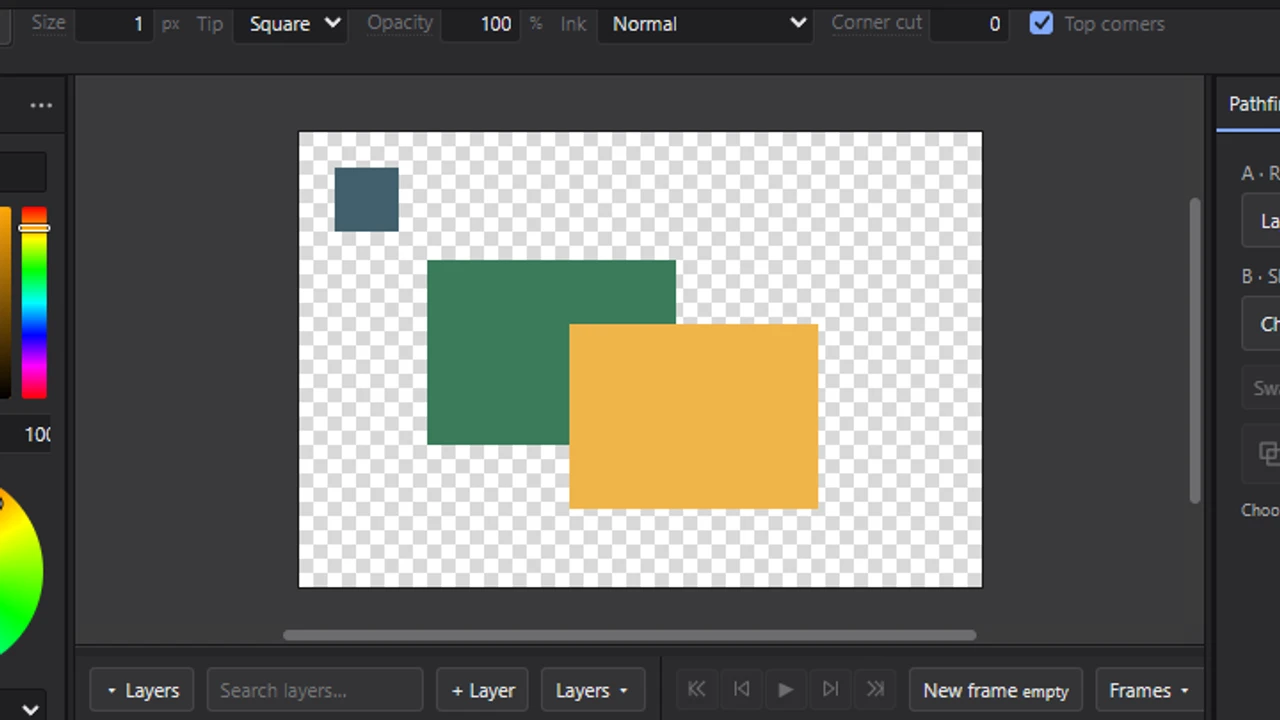
Use the active layer and the layer immediately below it to combine pixel silhouettes.
You will learn
- Choose any two visible layers as A and B
- Compare Merge, Subtract, Intersect and Exclude
- Keep the source and unrelated layers under control
Choose A and B, then merge
Open Window → Pathfinder. Set A · Result to the gold rectangle and B · Shape to the green source. They can be separated by other layers; the video deliberately skips a middle layer. Choose Merge A and B: both painted areas become one layer in A and B is removed. The middle layer remains intact. Undo before comparing another mode.
Check: Both painted areas remain in A; unrelated layers are unchanged.
Subtract B from A
Restore the source and choose the same gold A and green B. Subtract B from A removes B’s visible silhouette from A. Hide the green layer afterwards to inspect the gold cutout alone. B stays unchanged. Swap A and B reverses which shape is cut: this is an ordered operation.
Check: Only the gold area outside B survives; B remains available.
Intersect A with B
Restore the original layers and choose gold A and green B. Intersect A with B keeps only their shared area in A, using A’s colour. Hide B to inspect the surviving gold region. The separate middle layer is not part of the operation.
Check: Only the overlapping gold region remains in A.
Exclude overlap
Restore both shapes and check A and B. Exclude overlap keeps the pixels belonging to only one shape; the fully opaque overlap becomes transparent. As with Merge, the result stays in A and B is removed. Semitransparent overlaps use their actual alpha. Other layers remain unchanged.
Check: The outer green and gold pieces remain, with a transparent overlap.
If something does not work
B disappeared, or the operation is disabled
Merge and Exclude put the result in A and remove B. Subtract and Intersect keep B unchanged. Both layers must be different, visible and unlocked. Other layers are untouched, even between A and B. Undo restores the source; duplicate important originals first.