
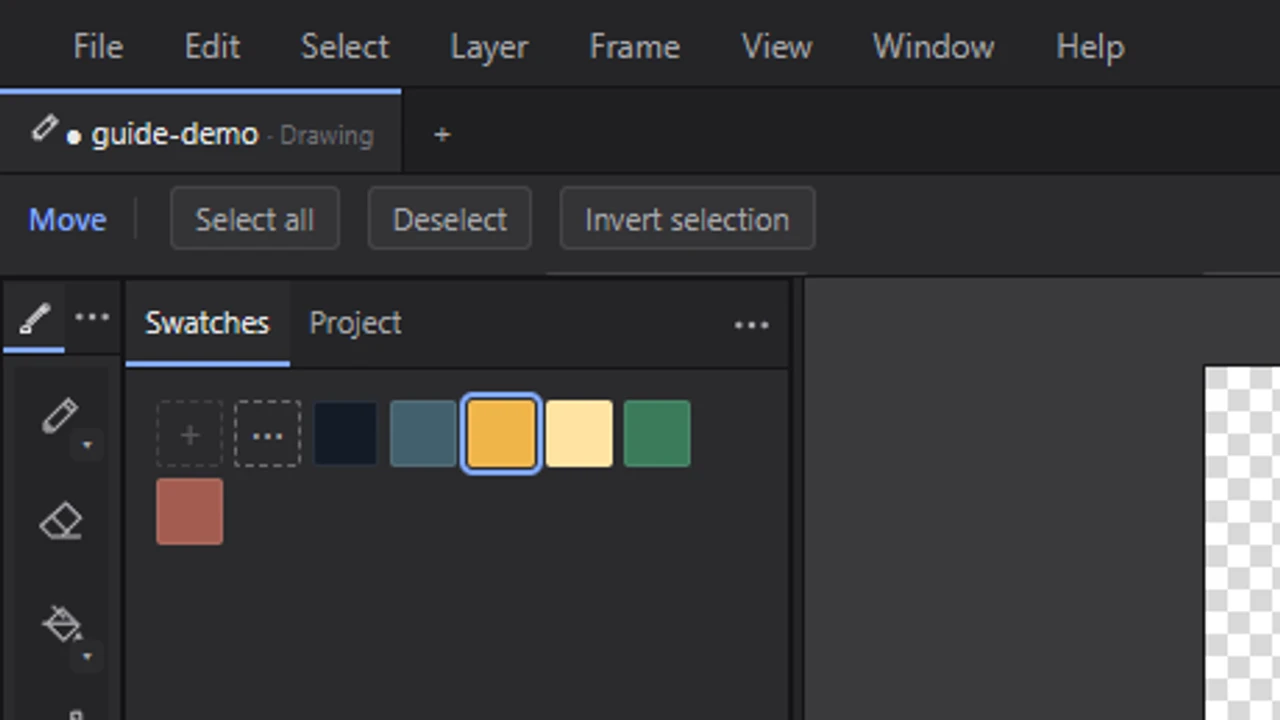
Reposition selected pixels without moving the camera or rebuilding the shape.
You will learn
- Choose Move
- Make the first action and inspect its result
- Move by 1 px or 10 px with the arrows
Choose Move
Find Move in the left toolbar. Open its arrow if it has one, then click Move. Check the tool name and its options before touching the canvas. Work on a visible, unlocked layer. On a phone, open the tool options sheet.
Check: Move is active.
Make the first action and inspect its result
Select the blue L with rectangular Selection, including a little transparent margin. Choose Move. Press inside the selected L, drag it to the right and release. Only the selected layer pixels move; the camera remains still. Press Ctrl+D to commit and remove the selection.
Check: Move the pointer away and compare the result with the starting image.
Move by 1 px or 10 px with the arrows
Select the blue L and choose Move. Press Arrow Right twice: each press moves it one document pixel. Hold Shift and press Arrow Right once for a ten-pixel step. The close-up keeps the camera fixed. Press Ctrl+D when the position is correct.
Check: The L moves twelve pixels to the right.
Flip an asymmetric L
Select the blue L. Open Select → Flip horizontal and inspect how its short foot changes side. Undo, select it again and choose Flip vertical. Using an asymmetric shape makes the two directions clear.
Check: The drawing changes orientation while the view stays still.
Practise with a controlled second example
Move the L to the right, then use Arrow Down twice for two one-pixel adjustments. Keep the selection while adjusting. Ctrl+D confirms the placement. Use Hand or Space when you only want to navigate the view.
Check: Inspect the finished result with the pointer away.
Before you continue
Use Undo to compare the result with the original, then save when the change is useful. On a phone, open the tool options sheet when a control is not visible.
If something does not work
The result is not what I expected
If the entire view moves, you are using Hand or holding Space. If unexpected pixels move, inspect the selected layer and mask.