
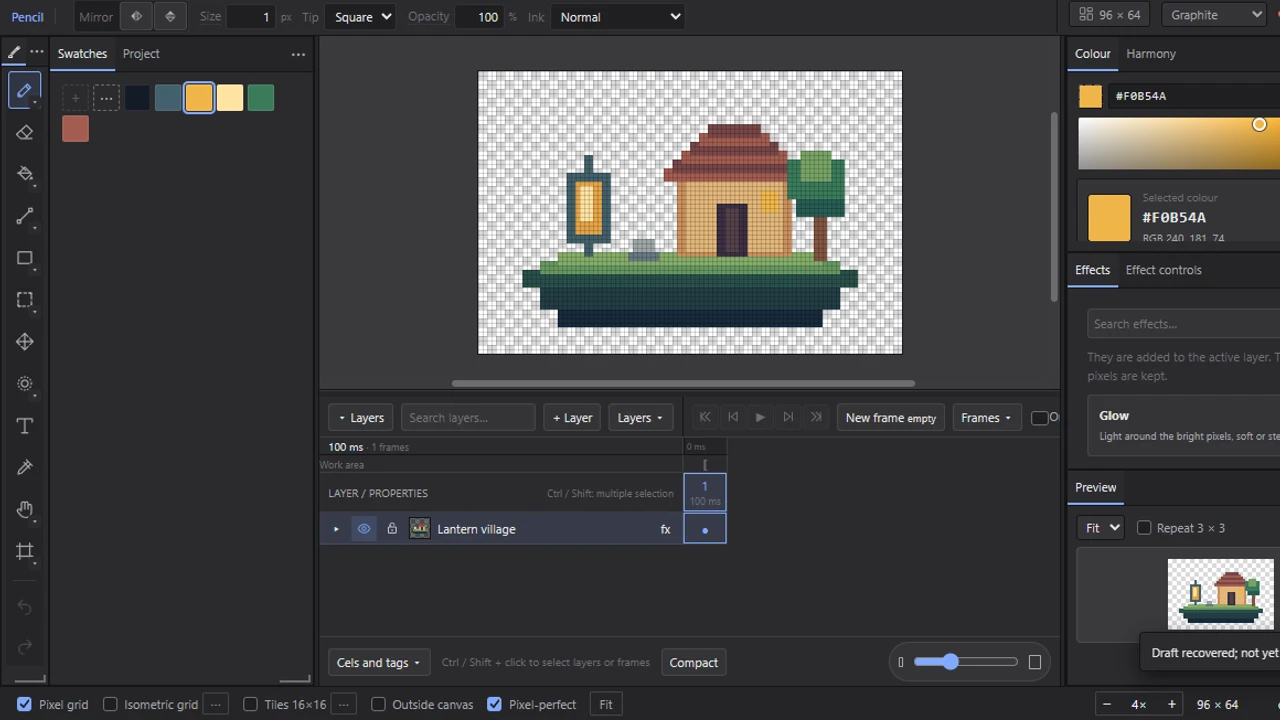
Inspect individual pixels, test a repeating texture and judge the result at its intended size.
You will learn
- Inspect individual pixels
- Set cell dimensions and offsets
- Review seams and a separate preview
Inspect individual pixels
Enable Pixel grid in the footer and zoom in. Inspect a diagonal: the lines separate pixels and remain editing guides. They do not paint a grid into your image. Disable it again to judge the silhouette without the overlay.
Check: The grid can be hidden without changing the drawing.
Set cell dimensions and offsets
Open View → Grid settings. Compare 16 × 16 with the 8 × 8 preset, then set the horizontal offset to 2 pixels and press Done. This overlays a cell guide on Drawing; it does not convert the file to a Tilemap or resize its pixels. Match the guide to the resource you intend to cut.
Check: The guide divisions change while the artwork stays the same size.
Review seams and a separate preview
Choose View → Tiled mode → Both directions and zoom out. The copies around the original help find seams at its edges. Editing still changes the original source. Open Window → Preview for a separate complete view while working close up. Return Tiled mode to Off when the repetition is no longer useful.
Check: Repeated edges and the separate Preview are identifiable.
If something does not work
I see repeated copies or lines in the editing view
Check View → Tiled mode, Pixel grid and Tile grid separately. Turn the unused aids off; they do not need to be erased with a brush. Inspect an exported PNG to distinguish view overlays from painted pixels.