
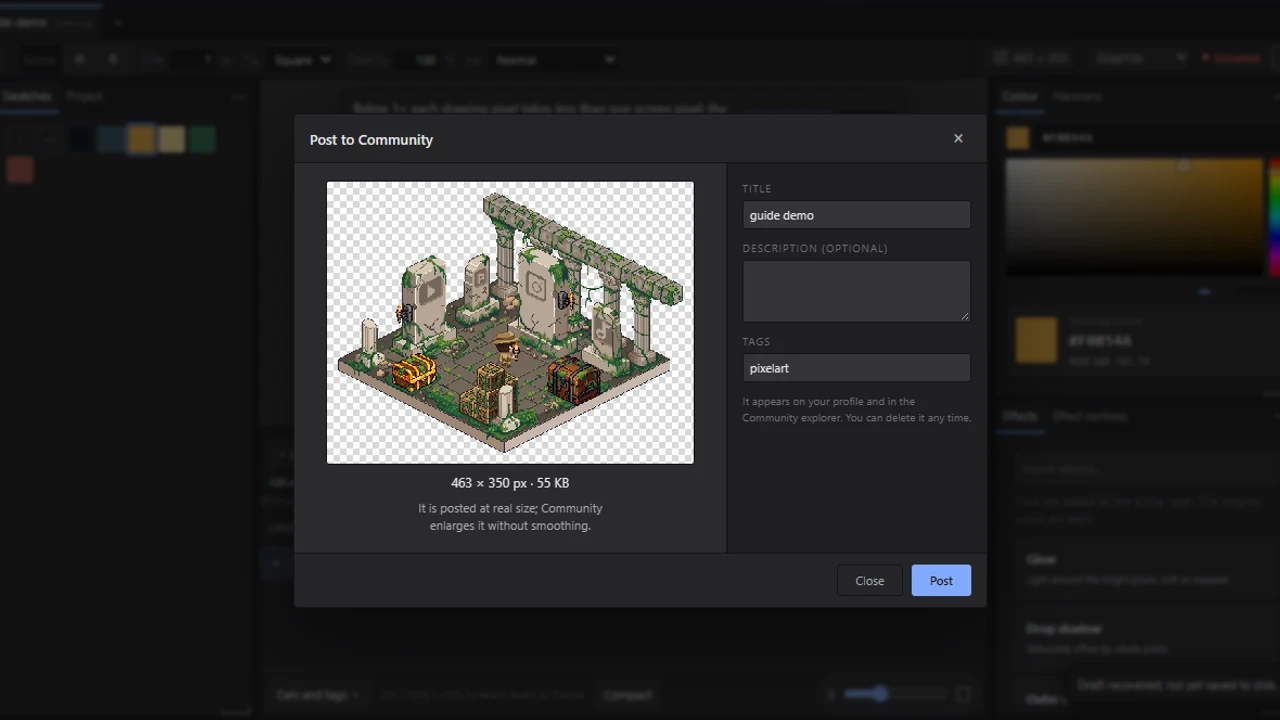
Turn a finished drawing or animation into a public artwork page with a meaningful title and description.
You will learn
- Review the original artwork preview
- Describe and credit this particular work
- Choose a still or the full GIF
Review the original artwork preview
Save the editable source, then open File → Post to Community. Inspect the original social temple in the preview and check its pixel dimensions. This public viewing copy is separate from the Studio project. Reference images and editing grids do not belong in the posted image.
Check: The publication preview shows the intended artwork.
Describe and credit this particular work
Write a useful title, then describe the subject, technique and authorship. For the temple, identify the original isometric environment and collective Studio credit. Add a few relevant comma-separated tags. Avoid a generic title that could describe every image; make the text useful to another artist viewing this work.
Check: Title, description and tags match this artwork.
Choose a still or the full GIF
This demonstration uses a copy of the original prepared with a global palette of at most 255 colours for GIF. Compare Animated (GIF) off and on. Off posts the current still; on uses the source frames. Watch the original explorer and torch and check the frame count. An image that looks correct on one frame can still have an unintended loop; inspect the animated preview before posting.
Check: You can distinguish the still from the animated publication.
Recover from the GIF colour limit
The full-colour original exceeds the 256-colour GIF limit. The dialog now explains the error and disables Post while no valid output exists. Turn off Animated (GIF) to publish the current still as PNG. For GIF use a reduced-palette copy and review its colours first; the preceding animated demonstration uses that prepared copy, never overwrites the original.
Check: The error clears and a valid still preview appears.
Post and inspect the result link
After review press Post. The confirmation gives See it in Community; open it to check artwork, attribution and the public artist link. Your work also appears under My works in Profile. The video submits to an isolated demonstration service, never a real public account. Save the editable source separately for future corrections.
Check: The confirmation provides the public result link.
Find published work in Profile
Open Profile → My works to find your finished publications. This gallery is distinct from Studio → Projects, which contains editable work. Review the public title, image and artist identity before sharing a specific artwork link. Favourites and Achievements have separate tabs.
Check: The artwork gallery is distinct from the editable project list.
If something does not work
The public preview is not the intended result
Cancel before confirming, check the active frame, visible layers and output bounds, and reopen the preview. A public artwork page is separate from its editable source; save the project independently.