
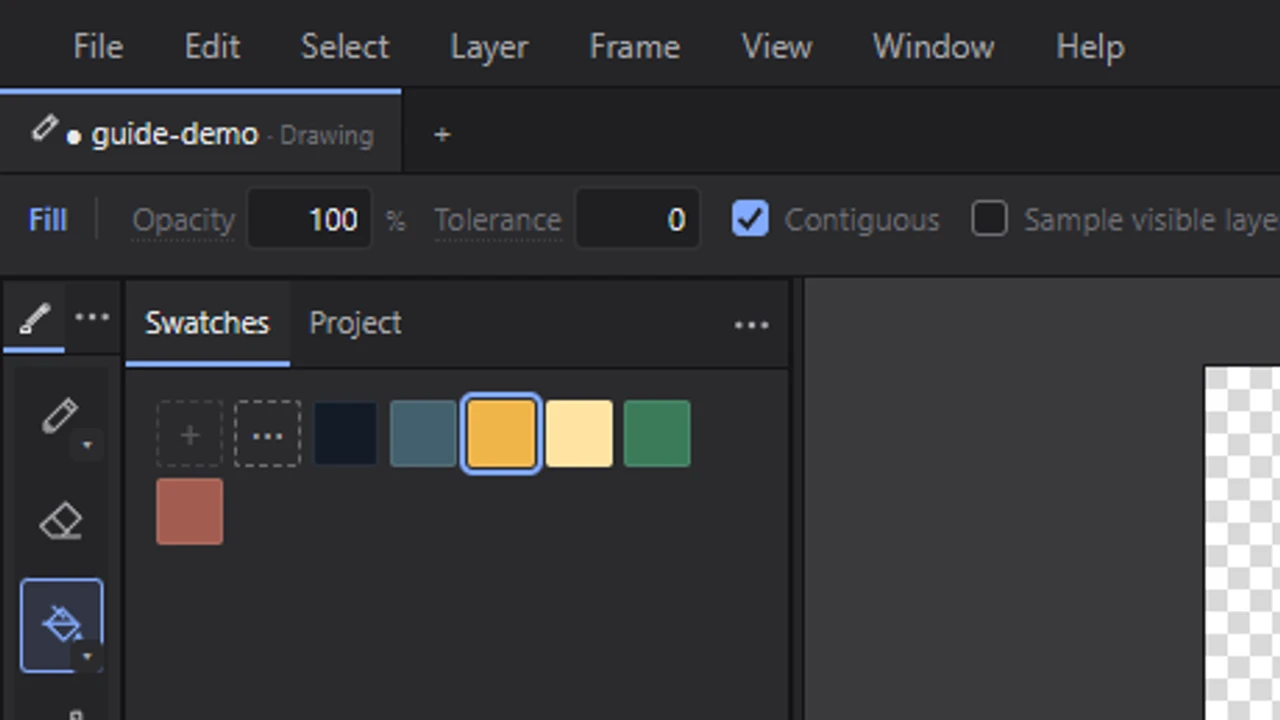
Replace a connected region, or matching colours across the image, with the selected colour.
You will learn
- Find Fill and its options
- Fill the inside of a closed outline
- Compare exact and nearby colours
Find Fill and its options
Open the Fills arrow in the left toolbar. Click Fill in the list. Look for its name in the top options row before touching the canvas. On a phone, choose the tool and open its options sheet.
Check: Fill is active before you paint.
Fill the inside of a closed outline
Start with a closed blue rectangle on a transparent layer. Choose yellow as the active colour. Select Fill and click once inside the rectangle. Release; do not drag. The connected empty area inside receives the colour, while the empty area outside remains protected by the closed outline.
Check: The rectangle has a yellow interior and the outside still shows the checkerboard.
Compare exact and nearby colours
Set Tolerance to 0 and click or begin the stroke on a source colour. Undo, use 70 and repeat at the same point. Higher tolerance includes more similar colours; reduce it if neighbouring shades change unexpectedly.
Check: The higher tolerance can include a larger range of source colours.
Choose connected or separated regions
With Contiguous enabled, the operation starts at the clicked region and stays connected. Disable it to include matching pixels in separated areas. Compare from the same source pixel, then undo if the operation reaches an unintended object.
Check: Separated matching regions are eligible only when Contiguous is off.
Choose which layers supply the boundary
Off samples the active layer. On samples the visible composition, while paint is still applied to the active layer. Use it when an outline is on another layer. Choose the destination layer before clicking so the fill is stored where you intend.
Check: Sampling source and paint destination are separate choices.
Compare solid and translucent paint
Make one test at 100% opacity. Undo, change to 30% and repeat from the same starting point. Inspect how the background shows through. Return to 100% for opaque artwork.
Check: The lower-opacity result lets the drawing or transparency underneath show through.
Find a leak, then repair the outline
Fill the closed rectangle, then undo. Choose Eraser at Size 1 and remove one pixel from its left border. Return to Fill and click inside: the paint reaches the outside through that opening. Undo the escaped fill. Choose Pencil at Size 1, use the original blue and close the gap. Fill again with yellow.
Check: After repairing the gap, the fill stays inside the rectangle again.
Before you continue
Use Undo to compare the result with the original, then save when the change is useful. On a phone, open the tool options sheet when a control is not visible.
If something does not work
The result is not what I expected
If separated regions also change, enable Contiguous. If nearby shades are included, reduce tolerance before trying again.