
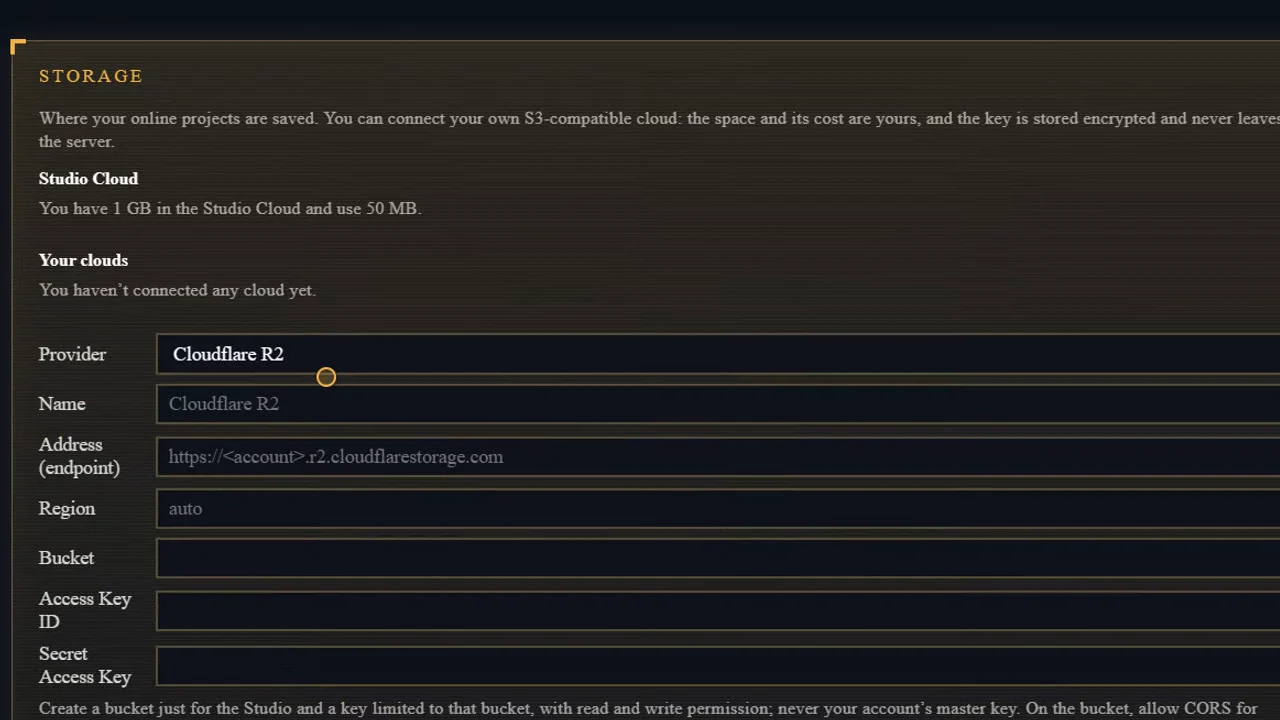
Read storage availability and distinguish a local project, Studio cloud space and a personal cloud connection.
You will learn
- Read your storage page
- Check Studio cloud space
- Connect a personal cloud only when allowed
Read your storage page
Open Configuration → Storage. Wait for its loading state to finish. If the query fails, use Try again; an error is not the same as an empty storage account. Availability depends on the access assigned to your account.
Check: A loaded status or a retryable error appears.
Check Studio cloud space
When available, read the quota, usage and service status before saving an online project there. A service limit can leave projects readable while temporarily preventing new saves. Keep an independent backup for work you cannot afford to lose.
Check: Usage and quota are read before starting an upload.
Connect a personal cloud only when allowed
Accounts with that permission can choose a compatible provider and enter a dedicated bucket connection. The connection is tested before it is saved. Use the provider’s scoped credentials for the intended bucket; do not paste secrets into a public profile or a support screenshot.
Check: A successful connection test is required before saving the provider.
Keep local and online work distinct
Connecting cloud storage does not automatically migrate every project folder on your computer. Follow the online project flow for the specific project. Removing a connection is separate from deleting files at the provider, and an in-use connection may need to stay connected.
Check: You know whether the project files are local or in the online project.
If something does not work
A failed query looks like no storage
Wait for the loaded status or use Try again. Check the account access and connection test separately from the provider quota. Keep the editable local backup while investigating; the error message is not proof that stored files were deleted.