
Choose an animation format for the destination and check scale, background and timing before downloading.
You will learn
- Export a repeating GIF
- Choose a video background and export
- Keep individual PNG frames
Export a repeating GIF
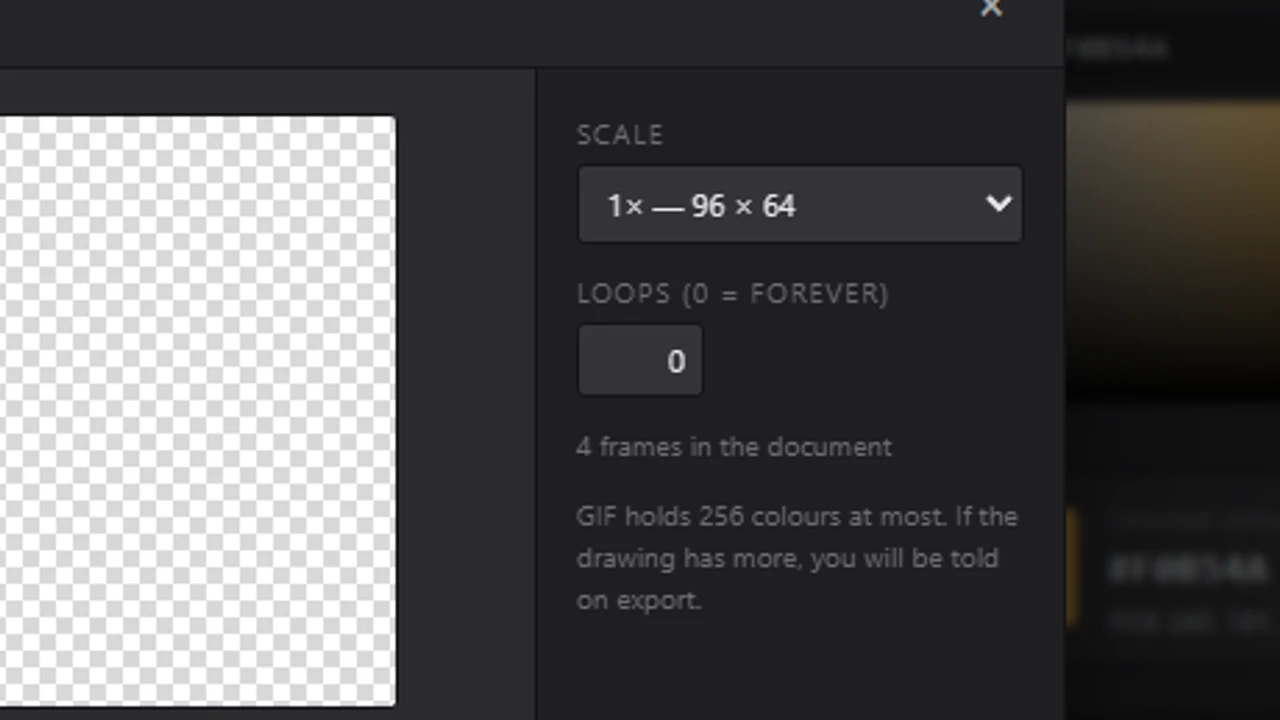
Save the editable source. Open File → Export as → GIF and set GIF loops to 0 for continuous repetition. Inspect the four poses and dimensions before Export. GIF has a limited palette; use it as a viewing copy rather than the only editable source. Confirm the downloaded filename ends in .gif.
Check: The browser downloads a GIF with the chosen loop setting.
Choose a video background and export
In Export as choose Video. Choose an opaque Video background before Export; this workflow does not preserve transparent video. Keep the tab active while recording completes. MP4 support depends on the browser encoder; WebM is the available alternative. Check the actual downloaded extension and play it before sharing.
Check: A video downloads after recording completes.
Keep individual PNG frames
Choose PNG sequence at Scale 1×. Export downloads a ZIP containing the individual frame images. Each frame keeps the canvas pixel dimensions and transparency. A sequence is useful for another production tool; it does not by itself replace the editable Studio file or guarantee that a target tool imports the timing automatically.
Check: The result is a ZIP sequence rather than a single still.
If something does not work
My downloaded video has no transparent background
This video workflow uses an opaque background. Choose the background deliberately, or use PNG frames or another supported transparency-preserving format for the destination. Video container support depends on the browser encoder; verify the actual downloaded format.