
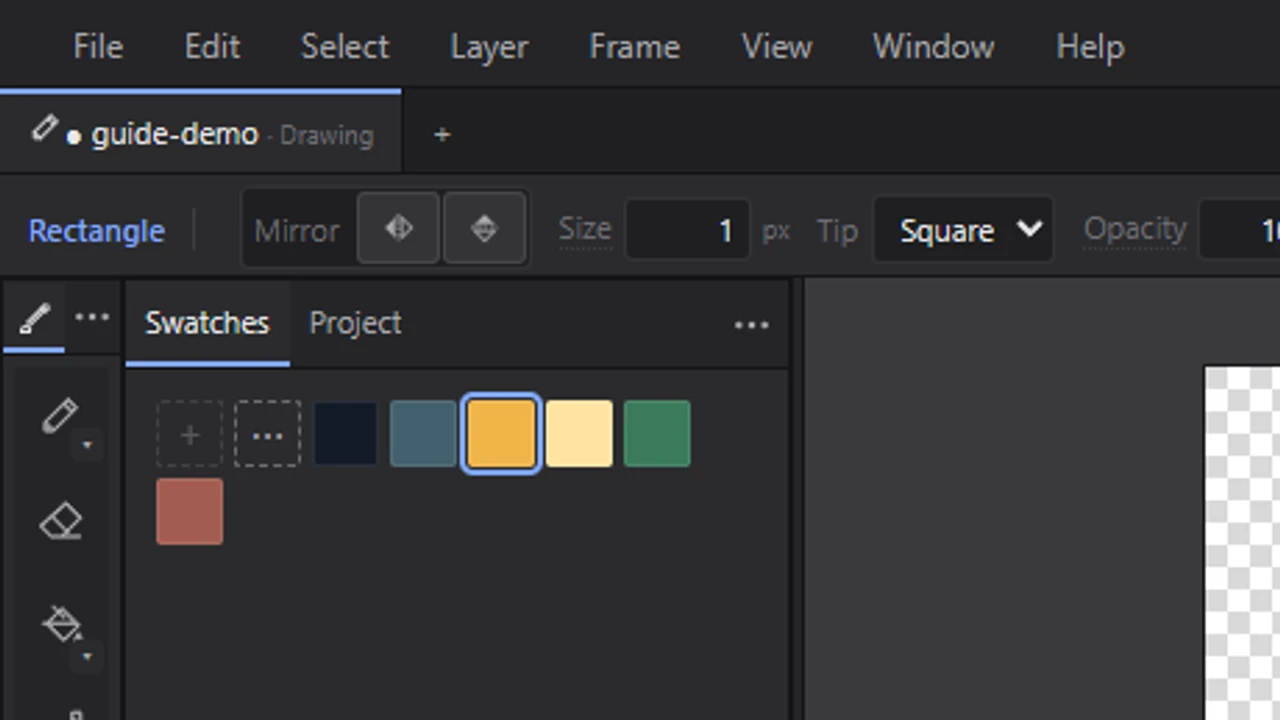
Build crisp rectangular outlines for windows, panels and blocky silhouettes.
You will learn
- Choose Rectangle and find its options
- Drag from one corner to the opposite corner
- Choose outline or filled shape
Choose Rectangle and find its options
Open the Shapes arrow in the left toolbar and click Rectangle. Check its name in the options row. Choose a visible, unlocked layer. On a phone, select the tool and open its options sheet before drawing.
Check: Rectangle is active before you start the gesture.
Drag from one corner to the opposite corner
Leave Fill shape off for this first example. Choose Size 1 and dark blue. Press above-left of an empty area, drag diagonally down-right and release. The two points define opposite corners of the rectangle. Move away to see the entire empty-centred outline.
Check: A closed four-sided outline remains after releasing.
Choose outline or filled shape
Leave Fill shape off and draw an outline. Undo, enable it and repeat. Choose your active colour first: it supplies the shape paint. Use outline when you need an empty centre and filled when you need a solid silhouette.
Check: The outline has an empty centre; the filled version does not.
Hold Shift for a square
Start a diagonal drag and hold Shift before releasing. The rectangle becomes square. Release Shift afterwards. Compare with a free drag to decide whether you need equal sides or independent width and height.
Check: The constrained shape has equal width and height.
Compare thin and thick marks
Start at Size 1 and make a mark. Undo, change Size to 7 and repeat from the same point. The number measures document pixels, so the mark grows without changing the canvas dimensions. Use the smaller size for precise edges.
Check: The second footprint is wider at the same zoom.
Choose a square or round footprint
Set Size to 9 before comparing Square and Round in Brush tip. Make a mark with each. Round is a stepped pixel footprint, so it preserves the pixel grid. At Size 1 the difference is not visible.
Check: The two large footprints have different corner shapes.
Compare solid and translucent paint
Make one test at 100% opacity. Undo, change to 30% and repeat from the same starting point. Inspect how the background shows through. Return to 100% for opaque artwork.
Check: The lower-opacity result lets the drawing or transparency underneath show through.
Make a window from three rectangles
Draw one large outline for the window frame. Release. Draw two smaller rectangular outlines inside it, with a gap between them for the central divider. Keep the same size and colour so the three gestures read as one simple window.
Check: The large frame contains two separate window panes.
Before you continue
Use Undo to compare the result with the original, then save when the change is useful. On a phone, open the tool options sheet when a control is not visible.
If something does not work
The result is not what I expected
The preview is not an extra permanent shape. Release to commit, or undo once to remove the completed rectangle.