
Transform a selected fragment while protecting the rest of the layer.
You will learn
- Move the intended selection
- Rotate an asymmetric shape
- Scale the pixels rather than the view
Move the intended selection
Select only the pixels you want to move, then choose Move. Drag inside the selected area. Artwork outside the mask stays fixed. Check the current layer before starting; moving a whole layer and moving a selected region have different scope.
Check: The selected pixels move while unrelated pixels remain.
Rotate an asymmetric shape
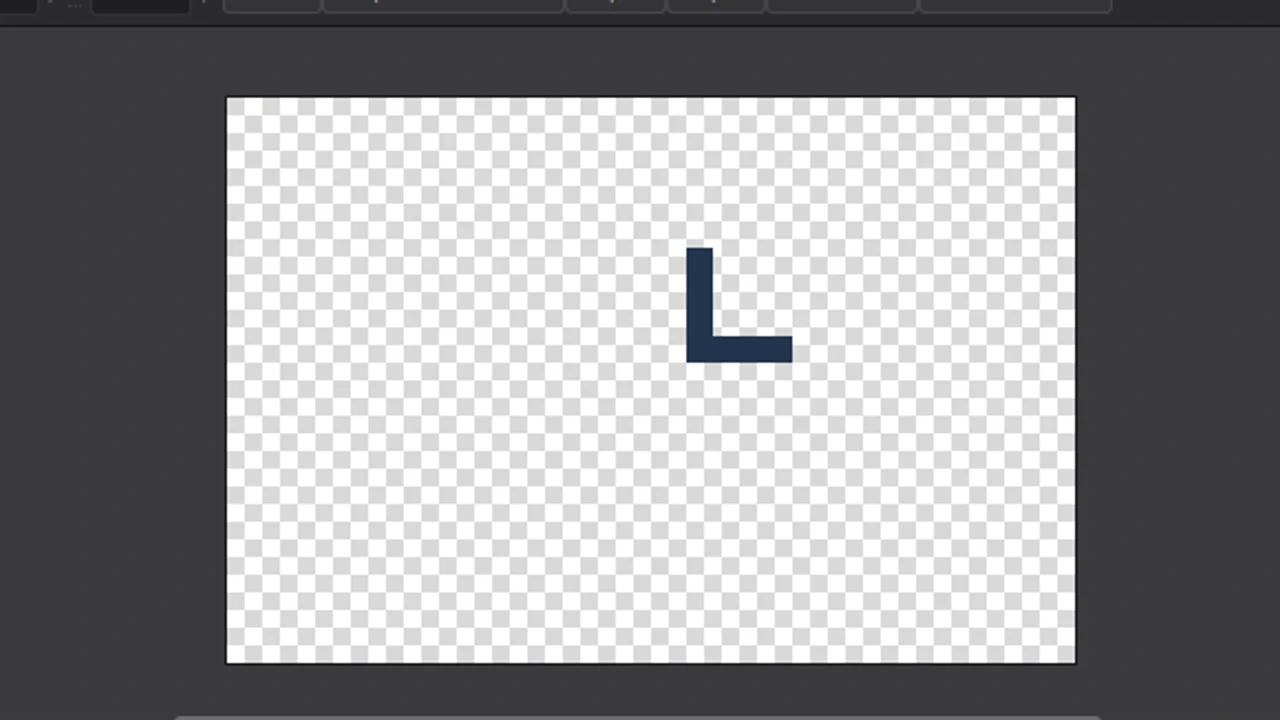
Surround the L with a rectangular selection. Select → Rotate 90° changes its orientation. Compare before and after with Undo. A circle would hide much of the rotation, so use a recognisable asymmetric silhouette. Repeated free rotations can alter pixel clusters; inspect at integer zoom.
Check: The L has visibly changed orientation.
Scale the pixels rather than the view
With the L selected choose Move. Set Scale to 150% in Transform selection and click Apply transform. Compare with Undo. This changes the artwork size; canvas zoom only changes inspection. Integer scale factors preserve regular enlarged pixel blocks more predictably than fractional factors.
Check: The source shape grows and Undo restores its original size.
If something does not work
Dragging changes the selection boundary instead of the pixels
Select Move or the free-transform command after defining the mask. A selection tool can reposition its mask. Confirm the transformation with the displayed action before changing to another operation; use Undo to return to the original.