
Find the access settings, activate the second step when available and keep recovery information private.
You will learn
- Check the current email
- Use the password controls
- Configure the second step
Check the current email
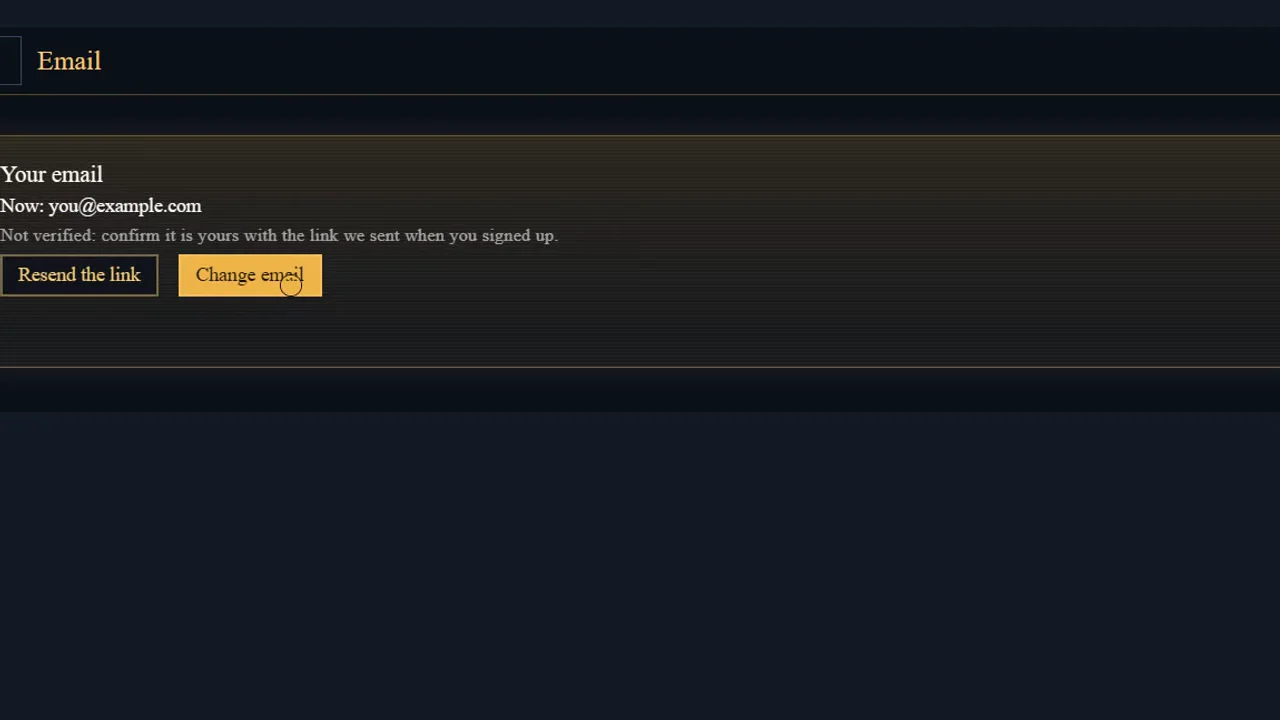
Open Configuration → Email and check the current address and verification state. Changing a public social link does not change this address. Follow the account flow to verify a new email before expecting it to become the login address.
Check: The current login address and verification state are identifiable.
Use the password controls
Open Password for the password form. Accounts using an external sign-in method may have different available password actions. Follow the fields and validation messages rather than assuming that a social sign-in password is stored in the Studio.
Check: The password section explains the action available for your access method.
Configure the second step
Open Second step and start the setup flow when offered. Add the provided secret to an authenticator and confirm with its current code. Team accounts follow the platform’s required verification flow before entering protected administration.
Check: Setup confirms a current authenticator code before reporting completion.
Keep a recovery route
Store recovery codes securely outside public projects, screenshots and chat. Test that you can produce a valid code before closing setup. If you lose access, use the platform’s recovery flow rather than sharing the secret with another artist.
Check: Recovery codes are kept privately, separately from shared work.
If something does not work
The authenticator code is rejected
Use the current code for the correct platform entry and check the authenticator device clock. Do not post the QR, secret or recovery codes in support captures. Use a private recovery code through the provided recovery flow when necessary.